Samsung Camera Filters: Built-In, Downloaded and Your Own
How Samsung camera filters work on One UI 9: the ten film-style looks, their five sliders, downloads, custom filters from a photo, and Gallery filters.
There are three types of Samsung camera filters you can use. Samsung’s ten default film-style filters are available on your camera, and you can also download more filters from the Galaxy Store. And you can create your own custom camera filters using photos on your phone.
Film-style filters are also available in Samsung’s Gallery app, where you can apply them to photos you’ve already taken.
Here’s how to use camera filters on Samsung phones running One UI 9 and how to avoid ruining your photos with camera filters.

The ten built-in filters
For the Galaxy S25, Samsung swapped out its previous filters for ten film-inspired options, and with One UI 7 those filters have made their way to older phones, too. According to Samsung’s CamCyclopedia, six of the film-inspired filters are completely new and four are updated versions of previously available options, all of which were developed with an eye towards emulating the colour and grain characteristics of film.
Below, we’ve summarised Samsung’s explanations for each of the Galaxy S25’s film-inspired filters, along with our take on which scenarios each might be best suited for.
| Filter | What Samsung says it does | Where it tends to suit |
|---|---|---|
| Breeze | Soft movie-style colour with low saturation and low contrast | Overcast portraits and quiet interiors |
| Pulse | A muted feel like a 20th-century documentary magazine | Street and travel photos |
| Crystal | Bright and clean | Snow, beaches and white rooms |
| Shiver | High saturation and contrast with vivid primary colours | Street art and festivals, at low intensity |
| Chill | A cold, dramatic look | Blue hour and winter scenes |
| Glow | Natural, realistic colour | Everyday photos when you want a gentle look |
| Amber | Classic negative-film colour with a retro tone | Golden hour, cafés and holidays |
| Sunbeam | A radiant, polished standard look | Bright daylight and food |
| Shadow | Soft black and white with rich dark greys | Moody portraits |
| Shade | Standard black-and-white film | Street and architecture |
Samsung’s ten filters are organised into four tone groups, from Neutral to Gray. Some of the names are pretty straightforward, but others are a bit abstract, like Breeze. The company’s Malaysia website helpfully includes a more conventional description for each one, such as Soft for Breeze.
The filters are available on the Galaxy S22, S23, S24, and S25 series; Galaxy Z Flip4, Flip5, and Flip6; Galaxy Z Fold4, Fold5, and Fold6; Galaxy Tab S9 and S10 series; and the Galaxy S23 FE and S24 FE. Samsung doesn’t list the Galaxy S26 series or the Galaxy Z Fold and Flip phones from 2025 and 2026.
Samsung’s Film grain slider doesn’t work on the Galaxy Tab S9 and S10 series or the Galaxy S23 FE and S24 FE.

Black and white photographs (either Shadow or Shade) will look good with strong contrasts between light and shade, like on a wet street. In our black and white guide we discussed how to judge a monochrome image.
How to apply a filter in the camera
- 1
Open Photo mode
Filters may not be available depending on the image resolution and aspect ratio selected in Photo mode. For detailed information, refer to Samsung's support website.
- 2
Tap the filters icon
On a Galaxy S25 Ultra running One UI 9 (checked in November 2026), it’s in the top bar next to Motion photo. If yours looks different from that, according to Samsung’s Galaxy S25 support page, Filters is in Quick controls (the button with four dots on it). Our camera app guide maps the other icons.
- 3
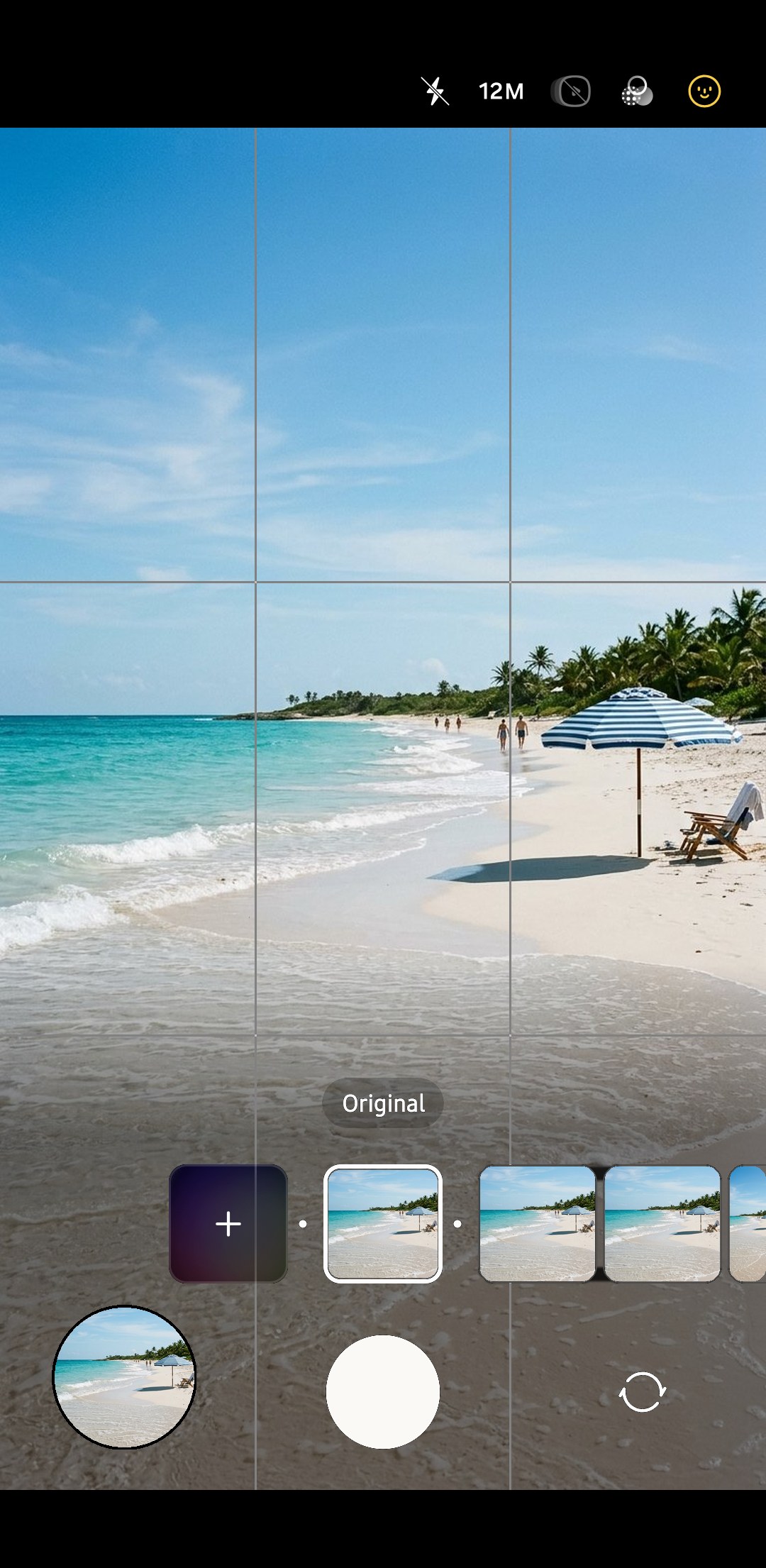
Swipe to choose a look
Swipe to change the preview. To see how the image would look without the filter, select Original as recommended on Samsung's website.
- 4
Fine-tune it
Adjust the filter to your liking with the sliders. According to Android Authority, the filter remembers the changes you made until you hit the undo button next to the filter's name.
- 5
Keep it for next time, or don't
You can also set the app to remember which filter you last used and reopen with that filter selected (Samsung says the selfie angle and shooting mode are also remembered). If you’d prefer to start with Original each time, turn this off in Camera settings > General > Settings to keep.

What the five sliders change
The values shown in the table below are merely starting points, so don’t worry about what you see there. What matters is how they look when previewed, and Samsung’s given us a handy new screen in the S25 models where we can tweak five different values.
| Slider | What it does | Sensible starting point |
|---|---|---|
| Intensity | How strongly the filter is applied | Around half, then raise it only if the look is too faint |
| Contrast | The gap between light and dark | Lower it in harsh midday sun |
| Saturation | Colour strength | Lower it when skin is in the frame |
| Colour temperature | Warmer or cooler colour | Follow the light, warmer at sunset and cooler at blue hour |
| Film grain | Film-style grain that Samsung varies with brightness | Low for photos you'll crop or print |
The available sliders depend on the filter, and Samsung says it’s tailored the available slider ranges per effect to best suit each one. For example, Android Authority found that the Shadow and Shade filters don’t have a saturation or colour temperature slider, since they’re black and white effects.
Downloaded filters just have an Intensity slider, which is how all Samsung filters have worked in the past up until the S25.
Make a custom filter from your own photo
Custom filters lets you select a photo, then analyses the colour and tone before creating a filter that replicates it.
Samsung’s own guide to camera features, the rather grandly named CamCyclopedia, points out this isn’t new but says it’s quicker to access on the S25 series, and the AI that powers it has been improved. It also recommends taking screenshots of photos you find online that you like the look of as a way to create custom filters.

- 1
Open Custom filters
Go to Camera settings > Intelligent features > Custom filters (it’s underneath Photo enhancer, checked on a Galaxy S25 Ultra running One UI 9, November 2026). Alternatively, according to Samsung’s online support documentation, you can open the filter strip in Camera and tap the plus icon.
- 2
Pick a reference photo
In Gallery, select the photo you want to base your filter on. Note that custom filters only replicate the colour and tone of an image, not the content, so ideally you’d pick a picture that was taken in similar lighting conditions to the types of photos you’ll be snapping going forward.
- 3
Name it and save it
Tap the suggested filter name to change it, then hit Save. Samsung says you can create up to 99 custom filters in total.
- 4
Use it like a built-in filter
Your filter should now show up alongside the rest. According to Samsung’s help documentation, you can long-press filters to delete or rearrange them.
If custom filters stop working, clearing the data of Filter Provider, a system app, may solve the problem, Samsung suggests on its support page.
Note that this step may remove your custom filters, so save the photos you used to make the custom filters, in case you’d like to recreate them.
Downloaded filters
Tap Download filters in the filter strip to check out Samsung’s Galaxy Store offering. When Android Authority checked, there were eight additional filters available for the Galaxy S25, each with just an Intensity slider, but we encourage you to check for yourself to see what’s currently available.
Adding a filter later in Gallery
Samsung’s CamCyclopedia also points out that the film-style camera filters are available in Gallery’s photo editor. Tap any photo, then tap the pencil icon. Next, tap the filters icon to select a filter and intensity level. This way you can also choose to Save copy (under More options), which keeps an unedited version of the pic alongside the filtered one. Reducing the filter intensity level is an easy way to tone down the effect in both the camera app and photo editor. Our photo editor guide covers the rest of the editor.
On Galaxy A16, A26, A36 and A56 phones, according to Samsung, you’ll find My Filters under Style in the Gallery photo editor. There, you can paint filters on certain parts of your pics, or apply them just to the subject or background of an image. Note that on these phones, according to Samsung, the camera app has a Fun mode with Snapchat filters. Those are different from the film-style filters we’re discussing here.
When a filter gets in the way
- You can’t use filters and Scene Optimizer together (on One UI 9 this setting is called Scene detection) because both features adjust the colour of a photo, according to Samsung’s CamCyclopedia. Our Scene Optimizer guide explains when to keep it.
- Samsung says filters aren’t available for all resolutions and aspect ratios, so if the icon is greyed out, try shooting with 12MP in the standard aspect ratio.
- There’s no way to remove filters chosen in the camera from a photo, at least according to Samsung’s own support content. So if you take important photos, we’d recommend shooting them with Original and only applying filters afterwards in Gallery. This way you can also use the Save copy option to keep the filter-free version.
- Filters aren’t everything! Check out our guide to making Samsung photos look natural to see which camera settings can have an even greater effect on your photos’ realism.
How do I get more filters on my Samsung camera?+
Where is Custom filters on One UI 9?+
Why is the filter option missing or greyed out on my Samsung camera?+
What happened to the Ivory filter?+
Can I remove a filter after taking the photo?+
Keep reading

Galaxy S26 vs S26 Ultra vs S26+: Cameras and Which to Buy
Galaxy S26 vs S26+ vs S26 Ultra from a photographer's view: cameras, zoom, low light, video, US prices after October 2026, and which one to buy.

Galaxy Z Flip7 Camera: Specs, Tips and Flip7 vs Flip7 FE
Galaxy Z Flip 7 camera guide: specs, cover-screen selfies, Flex mode and low-light tips, and how it compares with the Flip7 FE, Flip6, Flip8 and S25 Ultra.

Galaxy Z Fold7 Camera: Specs, Tips and Fold7 vs Fold8 Ultra
Galaxy Z Fold 7 camera guide: 200MP, ultrawide and 3x specs, selfie and Flex mode tips, S Pen and IP48 answers, plus Fold8 Ultra and S25 Ultra comparisons.

Samsung Galaxy A36 Camera: Review, Settings and A36 vs A56
Samsung Galaxy A36 5G camera review: 50MP specs, what reviewers found, the best settings, and how it compares with the A56, A26, A16, A17 and A37.