Samsung Panorama Mode: How to Get Clean, Level Panoramas
How to use Panorama mode on a Galaxy phone, why panoramas warp or ghost and how to fix it, plus vertical panoramas, lens choice and viewing in Gallery.
Galaxy panoramas tend to go wrong in a few predictable ways:
- Double people: if someone walks across the field of view as the phone is capturing the images, they might appear twice in the final panorama!
- Cropped panoramas: if you don’t keep sweeping the phone all the way across the desired field of view you’ll end up with a panorama that doesn’t cover everything you were intending to capture.
- Bending horizons: when the photos are combined into the final panorama image, if the photos weren’t taken perfectly level the resulting panorama may have a noticeably curved horizon.
Each one comes from how Panorama mode works. The phone takes a run of pictures as you move it and stitches them into one wide image, so anything that disturbs that run shows up at the joins.

How to take a panorama on a Galaxy
- 1
Open Panorama mode
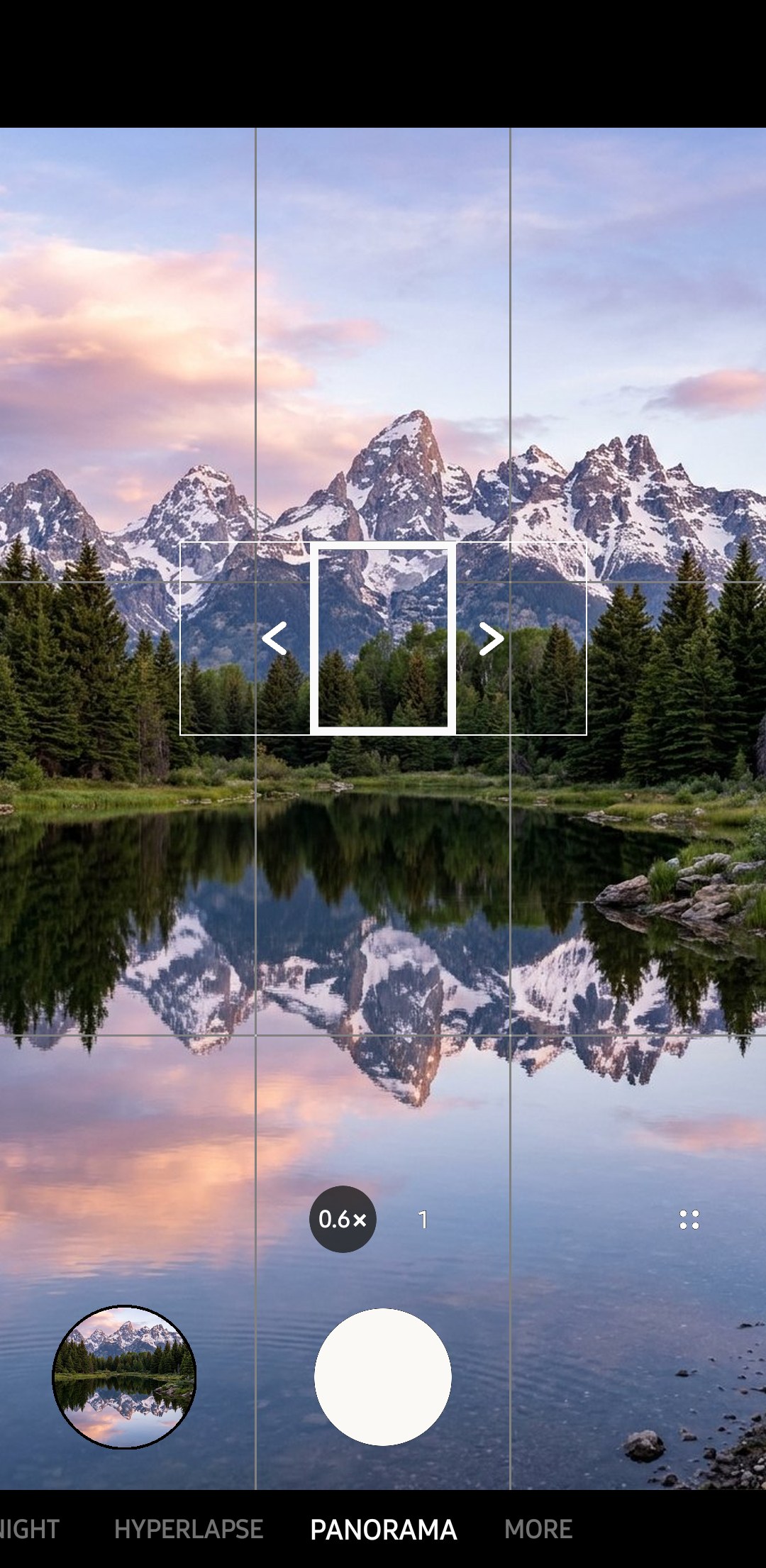
Panorama creates a linear image by taking pictures in the horizontal or vertical direction (according to Samsung’s support page for the S25 series). Select it by tapping More in the Camera app.
- 2
Set up your start point
Position yourself with your feet planted and facing toward the centre of the scene. From there, it’s easy to twist to one side of the scene and then smoothly pan to the other side. Ideally, Samsung says, you should begin and end in less detailed areas, so that it’s easier to blend the images together.
- 3
Tap the shutter and move slowly
Keeping the image within the guide frame, move the phone in one direction at a steady pace. According to Samsung’s S26 guide, if the image goes outside of the frame or you stop moving the phone, the capture will stop.
- 4
Tap again to finish
Tap the Done icon once you're happy with the coverage and your panorama will be stitched together and saved to Gallery.

Practice makes perfect, so do a practice sweep first to get a feel for keeping an even speed. The guide frame will also let you know if you’re straying too high or low.
Why panoramas go wrong, and the fix for each
| Problem | Cause | Fix |
|---|---|---|
| The horizon curves or slopes | The phone tilted up or down during the sweep | Start level and keep the preview centred in the guide frame |
| Buildings bend or fences break at the joins | You swung the phone from your wrist, so the lens moved sideways | Turn from the waist with the phone close to your chest, or use a tripod head that pans |
| A person appears twice or loses a limb | They moved while you swept past | Wait for a gap, or ask people to keep still until you've passed them |
| Blurred or smeared sections | You moved too fast, or the light was low | Slow down, and use a tripod in dim light |
| The panorama stops early | The preview left the guide frame, or you paused | Move at a steady pace and keep the image inside the frame |
| Visible seams in the sky or on a wall | There's too little detail for the stitching to line up | Include some texture, and avoid empty skies and plain walls |
Samsung’s guidance is consistent with the above, advising you to avoid shooting fast-moving objects, to move the camera in a smooth and steady manner and to use a tripod when shooting in low-light conditions. Its guide for the S26 warns that the feature may not work well when shooting objects against plain backgrounds such as a wall or empty sky.
Turn around the phone, not past it

Try to avoid swinging the phone around in a big arc from your shoulder or wrist as this will cause the phone to move sideways as you take each photo. This means that nearer objects will appear to move relative to the background between shots, an effect known as parallax. Parallax is the main cause of objects appearing to bend or warp in stitched photos, especially noticeable with fences or other objects containing strong straight lines.
For the best results when shooting a panorama by hand, hold the phone with both hands, keep your elbows tucked in and rotate around your waist, keeping the phone in front of your chest. Avoid getting too close to objects in the scene, ideally keeping everything a few metres away or more. When shooting panoramas of buildings or interiors, use a tripod and ideally one with a panning head for smoothest results. Our tripod guide compares the alternatives.
Light and people in a panorama
Panoramas taken facing away from the sun or with the sun off to one side will be easier to expose than those with the sun in front of you. Similarly, panoramas taken in flatter light, e.g. after sunset or in cloudy conditions, will be easier to expose than those taken in harsh sunlight. Our sunset guide covers timing that light.
If the panorama is going to contain a group of people, ask them all to stand as still as possible until the phone has panned past them. Start the panorama from the end with the most restless people so that they’re photographed first. If someone stands at one end of the panorama and then walks round behind you to stand at the other end before the phone gets round to them, they’ll appear twice in the final panorama.
Vertical panoramas
Vertical panoramas are good for capturing skyscrapers and waterfalls. Start from the bottom of the object and tap the shutter button. Tilt your phone up slowly, and try to keep the image in the little frame to guide you. Samsung shows the option on its Galaxy S25 series phones as well as on the Galaxy A57.
Skyscrapers may seem to fall over backwards if you take a vertical panorama since you need to tilt your phone upwards to get the top of the building. Try to stand as far away as possible. Alternatively, Snapseed’s Perspective tool can fix them up later on (the Play Store description mentions correcting “skewed lines”). Our architecture photography guide covers converging verticals in more depth.
Choose the lens
Panorama mode works with more than one camera lens, depending on the phone. In 2019, SamMobile reported that panoramas on the Galaxy S10 were taken with the ultra-wide camera, and that an update added the ability to use the main camera for panoramas.
If you see buttons to select cameras in Panorama mode, here’s how to choose:
- Ultra-wide: Captures more vertically with one pan, good for rooms.
- Main: Has better detail and low-light performance.
Panorama or the ultra-wide lens?

The 0.6x (ultra-wide) camera on flagships like the S26 Ultra can capture 120-degree photos in a single shot, without the ghosting or stitching issues you can get with Panorama mode. That makes it the go-to in low light or when you’re photographing moving people. That said, Panorama mode is still the go-to if you’re shooting anything wider than 120 degrees, or you want higher-resolution images.
Distortion can be an issue when you’re using ultra-wide cameras, since it can warp people and objects on the edge of the frame. Taking a Panorama shot with your main camera avoids this problem in most cases, making it better for landscapes, like mountains or city skylines. Our landscape photography guide has more on framing wide views.
Tidy up the result
Pictures can be rotated and cropped. If you find that your horizon is tilted, use the rotate function in Gallery to straighten it out. Stitched images often have ragged edges on the top and bottom. These can be cropped out in Gallery's editor. Panoramas are long and thin; it’s often useful to crop them a bit so they don’t get displayed as just a sliver on travel posts and in social media apps.
View your panoramas in Gallery
On the Galaxy S25 series, you’ll get a handy View panorama button in Gallery for landscape panoramas. Tap it and you’ll be able to see the photo in fullscreen and can rotate your phone left and right to view different parts of the picture. One UI 7 brought this handy feature to Galaxy S23 series phones as well, according to SamMobile. Showing someone a panorama photo on your phone without having to scroll through the tiny image is much easier this way.
How do I take a panorama on a Samsung phone?+
Why are my Samsung panoramas distorted?+
Can I take a vertical panorama on Samsung?+
Why does my panorama stop on its own?+
Keep reading

30-Day Photography Challenge: Get Your Samsung Galaxy Off Auto
A free 30 day photography challenge for Samsung Galaxy phones that takes one camera decision off Auto each day, with starting settings and a printable PDF.

Samsung White Balance: How to Get Accurate Colors Every Time
How to set white balance manually on a Samsung Galaxy, with Kelvin values for common light and fixes for orange indoor photos and blue shade.

Samsung Pro Mode Presets: Settings to Save by Situation
How to save and load Samsung Pro mode presets in Camera Assistant, with starting values for night streets, tripods, action, portraits and the moon.

Samsung Camera Not Focusing? Close-Up, Zoom and AF Fixes
Samsung camera won't focus? You're often closer than the lens allows (about 18cm on the S26 Ultra main). Fixes for close-ups, zoom, glass, dim light, cases.