Samsung AE/AF Lock: How to Lock Focus and Exposure
How to lock focus and exposure on a Galaxy camera, adjust brightness after locking, split AF and AE in Pro mode, and use the lock for video and hyperlapse.
If you long-press on your subject with the Galaxy Camera app, the camera will lock focus and exposure. Even if you move your phone around or a bright object enters the frame, the camera won’t reassess exposure or focus.
This is handy if you want to take several photos of the same subject and have them all come out at the same focus distance and brightness. Samsung’s Galaxy S26 guide documents focus and exposure lock, and it works the same way on most other recent Galaxy phones.

How to lock AE/AF on Samsung Galaxy
- 1
Open Photo mode
While you’re getting acquainted with the lock, use Photo mode. The feature works in this mode (and some others, but according to Samsung, not necessarily all shooting modes).
- 2
Touch and hold the subject
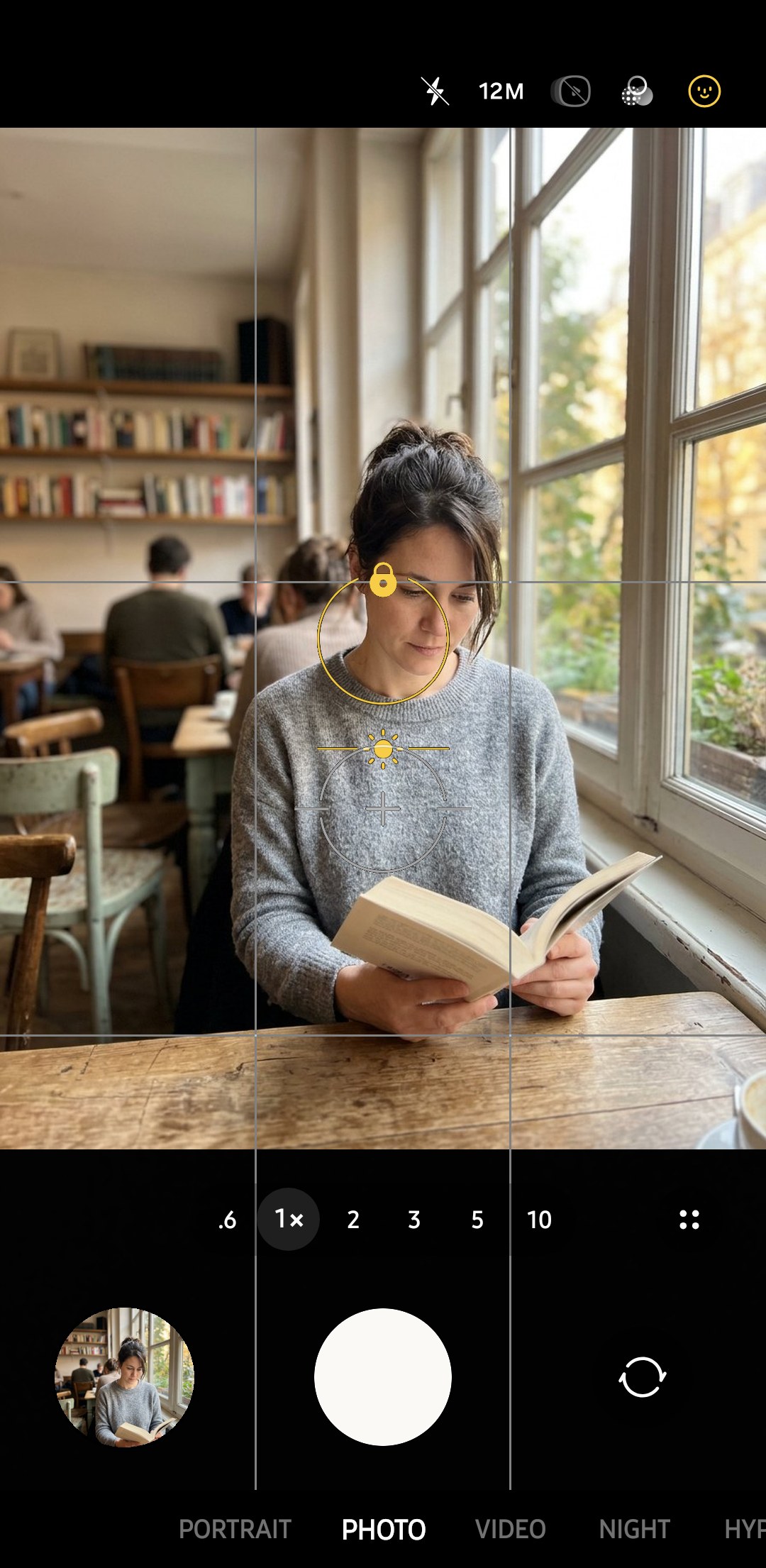
To lock the focus and exposure on a particular point within the frame, just press and hold your finger on that point. After a moment you’ll see a focus/exposure lock indicator (a padlock-like circle, according to Samsung’s CamCyclopedia) appear around the area you touched.
- 3
Adjust the brightness
Drag the slider down to retain details in a bright area, such as a white shirt or sky. Drag the slider up to brighten a face that’s in shadow. The slider appears next to the lock. The focus of the shot doesn’t change when you use the slider.
- 4
Recompose and shoot
According to Samsung’s S26 guide, once you’re happy with your framing, you can take your shot and the settings remain locked in, so if you want to take multiple pictures with the same focus/exposure you can do so.
- 5
Release the lock
Tap away from the area you focused on and the camera will refocus and return to auto exposure.

Tap the screen to set AF (autofocus) and AE (auto exposure), and the camera will continue to adjust focus and exposure as needed. Press and hold to lock AF and AE, and the camera won't adjust focus or exposure until you unlock it.
If you just want to take a darker or brighter picture, use the Exposure control in Quick controls to adjust exposure without locking focus. According to Samsung's support website for the S26, this control is a slider you can use to select your desired exposure. A Galaxy S25 Ultra with One UI 9 installed says in the Tips app that exposure will remain where you set it in that camera mode.
What the lock fixes

Locking is useful in those situations where the camera's automatic settings would keep changing. Here's when it's most useful and what you can do with it. Our free 30-day photography challenge is a decent lead-in to the lock: its first week covers the basics of tap-to-focus and how to use the brightness slider.
| Situation | Lock on | Then |
|---|---|---|
| A person in front of a bright window | Their face | Let the window go bright and nudge the slider up if the face is still dark |
| Sunset or sunrise | A bright part of the sky | Drag the slider down to keep the colour in the clouds |
| A silhouette | The bright light source | Lower the slider until the subject turns into a dark shape |
| Shooting through a window or a fence | The subject beyond it | Recompose without focus jumping to the glass or the wire |
| A set of product or carousel photos | The product | Every frame keeps the same brightness |
| Waiting for someone to walk into a scene | The spot they'll reach | Fire when they arrive, with focus already set |
| Hyperlapse at sunset | The sky or the landscape | The camera stops chasing the changing light |
Samsung’s CamCyclopedia gives two examples. In poor light, lock AE/AF and then pull the exposure down a bit. Your ISO will be lower and the noise reduced. Conversely, facing a strong light, try pointing at the light source, lock AE/AF and then drop the exposure. The rest of the picture will be underexposed and you’ll get some nice silhouettes with the bright area retaining some shape and form. Our silhouette guide follows the latter.
Street photographers can pre-set AF and use it to take several shots of people walking by without the AF system hunting for a new subject between shots. Pick a likely place for them to pass through that’s lit up, and stand there with your phone pointed at it, as our street photography guide explains.
Separate focus and exposure in Pro mode
If the subject you want in focus isn’t in the same place as the area you want to meter exposure from, say if you’re shooting someone’s face against a bright background, you can lock AF and AE separately. In Pro and Pro Video modes, Samsung’s S26 guide says to touch and hold until the AF/AE frame appears (this will break apart into AF and AE frames before combining again), then tap again and drag the AE frame over the area you want to meter from.
Alternatively, you can manually set ISO and shutter speed for a set exposure and focus manually for a set focus distance in Pro mode. (On a Galaxy S25 Ultra with One UI 9, Camera Assistant also has a Focus peaking in Pro modes option that draws a coloured line around areas in focus.) Our Pro mode guide covers each control.
Pro modes also have three metering modes: Matrix (which meters from the whole image), centre-weighted (which places more importance on the centre of the frame) and Spot (which meters from a small area in the centre, handy for quickly metering from a particularly bright or dull area without having to AE lock).
Lock focus and exposure for video
Locking exposure and white balance manually can help prevent distracting changes in brightness as you move from one scene to another in Pro Video mode. Changes in exposure aren’t as noticeable in stills, so your eye won’t pick up on them as quickly as it would in a video clip. You can also adjust focus and exposure levels while recording with Touch AF/AE in Pro video mode, found in Camera Assistant on a Galaxy S25 Ultra running One UI 9.
Samsung’s CamCyclopedia also suggests locking AF and AE when shooting sunrises and sunsets in Hyperlapse mode so that the camera won’t keep readjusting to changes in lighting. Our hyperlapse guide covers that mode, and the video settings guide covers Pro Video.
Why the lock seems to stop working
- Focus and exposure are locked, but the scene may have changed since you locked them. For example, if a cloud passes in front of the sun after you’ve locked exposure, subsequent pictures will be too dark (or too light). Lock exposure again.
- Recompose by rotating your phone instead of moving closer or farther away. Focus is locked at a particular distance, so moving closer to (or farther away from) your subject will result in pictures that are out of focus.
- Try not to touch the viewfinder as you shoot pictures. Touching the viewfinder can inadvertently change your focus point. Try holding your phone by the edges and using the volume button as the shutter button.
- If nothing happens when you press and hold, make sure you’re using Photo or Pro mode. Samsung cautions that focus and exposure lock isn’t available in all shooting modes.
- Focus and exposure lock may be cancelled if you zoom after locking them. Lock focus and exposure last, after you’ve composed your picture and zoomed.
- Focus won’t lock. Make sure the lens is clean and that the subject isn’t closer than the lens’ minimum focusing distance, and work through our camera not focusing guide.
What does AE/AF lock mean on Samsung?+
How do I unlock AE/AF on my Galaxy?+
Can I lock exposure without locking focus?+
Does AE/AF lock stay on after taking a photo?+
Keep reading

The Exposure Triangle: Aperture, Shutter Speed, ISO Explained
The exposure triangle is how aperture, shutter speed, and ISO balance to make a photo. Here's the simple version with Samsung Pro Mode examples.

Super Steady, Horizontal Lock and OIS: Samsung Video Stabilisation Explained
What Video stabilization, Super Steady, Horizontal lock and OIS do on Galaxy phones, their resolution limits by model, and when to switch them off.

What is Bokeh? The Aesthetic of Out-of-Focus Light, Explained
Bokeh is the quality of the blurred background in a photo. Here's what creates it, how to spot good vs bad bokeh, and how to fake it on a Samsung Galaxy.

Samsung Pro Mode Presets: Settings to Save by Situation
How to save and load Samsung Pro mode presets in Camera Assistant, with starting values for night streets, tripods, action, portraits and the moon.