Super Steady, Horizontal Lock and OIS: Samsung Video Stabilisation Explained
What Video stabilization, Super Steady, Horizontal lock and OIS do on Galaxy phones, their resolution limits by model, and when to switch them off.
Video stabilisation isn’t just one thing. It’s up to four techniques, spread across three different places, with different strengths and weaknesses. The different flavours include:
- Optical image stabilisation (OIS), which compensates for small movements by moving a lens element.
- Video stabilization, which crops in slightly to digitally steady the frame.
- Super Steady, which crops in even more to compensate for larger movements like walking or running.
- Horizontal lock (newer models only), which uses some of the techniques above to keep the horizon level, even if you roll the phone over as you shoot.
Different techniques use different amounts of cropping and can impact image quality in different ways, such as lowering the frame rate or resolution, or affecting low-light shooting. So it’s good to know what’s stabilising your Galaxy videos, and what the impact will be.

What each stabilisation option does
| Option | Where to find it | What it does | What it costs |
|---|---|---|---|
| Optical image stabilization (OIS) | Camera Assistant, under Videos, on One UI 8.5 and later | A moving lens element cancels small shakes before the image reaches the sensor | Nothing in normal handheld use |
| Video stabilization | Camera settings, under Videos | Software steadies the picture by cropping in and moving the crop against the shake | A slightly narrower view and a little detail |
| Super Steady | The running-figure icon at the top of Video mode | Much stronger software stabilisation for walking, running and action | QHD or FHD only, no HDR10+, and more noise in dim light |
| Super Steady with Horizontal lock | Inside the Super Steady icon on supported phones | Keeps the horizon level even if the phone rotates a full 360 degrees | The same limits as Super Steady |
Turning off just one of these options will still leave image stabilisation of some kind on. According to SamMobile, the Video stabilization option in Camera settings only controls the electronic stabilisation aspect.
The OIS toggle within Camera Assistant (new in One UI 8.5) controls the optical image stabilisation aspect. We checked on a Galaxy S25 Ultra with One UI 9 (as of November 2026), and the description for the OIS option even states that you’ll need to disable Video stabilization in Camera settings, too, in order to disable image stabilisation altogether.
Electronic image stabilisation works by cropping into your video and moving the cropped area around to compensate for shakiness, which is why video looks slightly wider when you disable it.
Resolution and frame-rate limits by model
Super Steady’s steadiness comes at the cost of resolution, depending on which phone you have.
Samsung’s Super Steady page notes that video can be recorded in QHD or FHD with Super Steady on, and that HDR10+ video isn’t available while Super Steady is enabled.
For newer phones, news stories and reviews have included more information on the resolution, though Samsung does not have this information laid out for all phones.
| Phone | Super Steady | Horizontal lock | Highest stabilised setting |
|---|---|---|---|
| Galaxy S26, S26+ and S26 Ultra | Yes | Yes, since launch on One UI 8.5 | QHD at up to 60fps, with zoom limited to 2x (Tom's Guide) |
| Galaxy S26 FE | Yes | Yes | QHD or FHD, per Samsung's general Super Steady page |
| Galaxy S25, S25+ and S25 Ultra | Yes | Added with One UI 9 | QHD at up to 60fps (SamMobile) |
| Galaxy Z Fold7 | Yes | Added with One UI 9 | QHD or FHD, per Samsung's general Super Steady page |
| Galaxy S24 series | Yes | No, even on One UI 9 | QHD or FHD, per Samsung's general Super Steady page |
| Galaxy A26 | Yes, in its user guide | Not listed | Check the resolution icon with Super Steady on |
If you find that options for 4K or HDR10+ are greyed out and unavailable to select in Video mode, check to see if the Super Steady option is selected (icon looks like a running figure). Super Steady does not allow for HDR10+ and limits video resolutions. Disabling Super Steady makes these options available again.
Note that, according to Samsung, Super Steady is not available when using the front camera, or in Pro Video or Portrait Video modes.
Which setting for which shot
| Shot | Stabilisation | Why |
|---|---|---|
| Handheld, standing or walking slowly | Video stabilization on, OIS on | Smooths hand shake for the cost of a small crop |
| Walking, running or cycling with the phone | Super Steady | Removes footstep bounce, at QHD or lower |
| Action where the phone tilts or rolls | Super Steady with Horizontal lock | Keeps the horizon level through any rotation |
| Handheld at night or indoors | Video stabilization on, Super Steady off | Samsung warns that Super Steady can lower shutter speeds and add noise in low light |
| Pro Video or Log | A gimbal or tripod | Super Steady isn't available in Pro Video |
| Phone on a tripod | Video stabilization off, OIS off | There's no shake to correct, so you keep the full view |
| Phone on a gimbal | Video stabilization off, then compare OIS off and on | The gimbal does the work, and two systems correcting the same motion can fight |
| Car, bike or helmet mount | Record a short clip each way | Mount vibration differs from hand shake, so let a test decide |
If you shoot videos using a gimbal, you may have experienced issues in the past where jitter creeps into your footage. This has been attributed to the phone’s own stabilisation kicking in and reacting to the movements of the gimbal, with Samsung phones prone to the issue according to Moment’s gimbal help centre. Older phones didn’t offer users a way to switch off OIS, but Camera Assistant provides that, and it’s worth testing whether you benefit from it or not.

How to turn stabilisation off completely
- 1
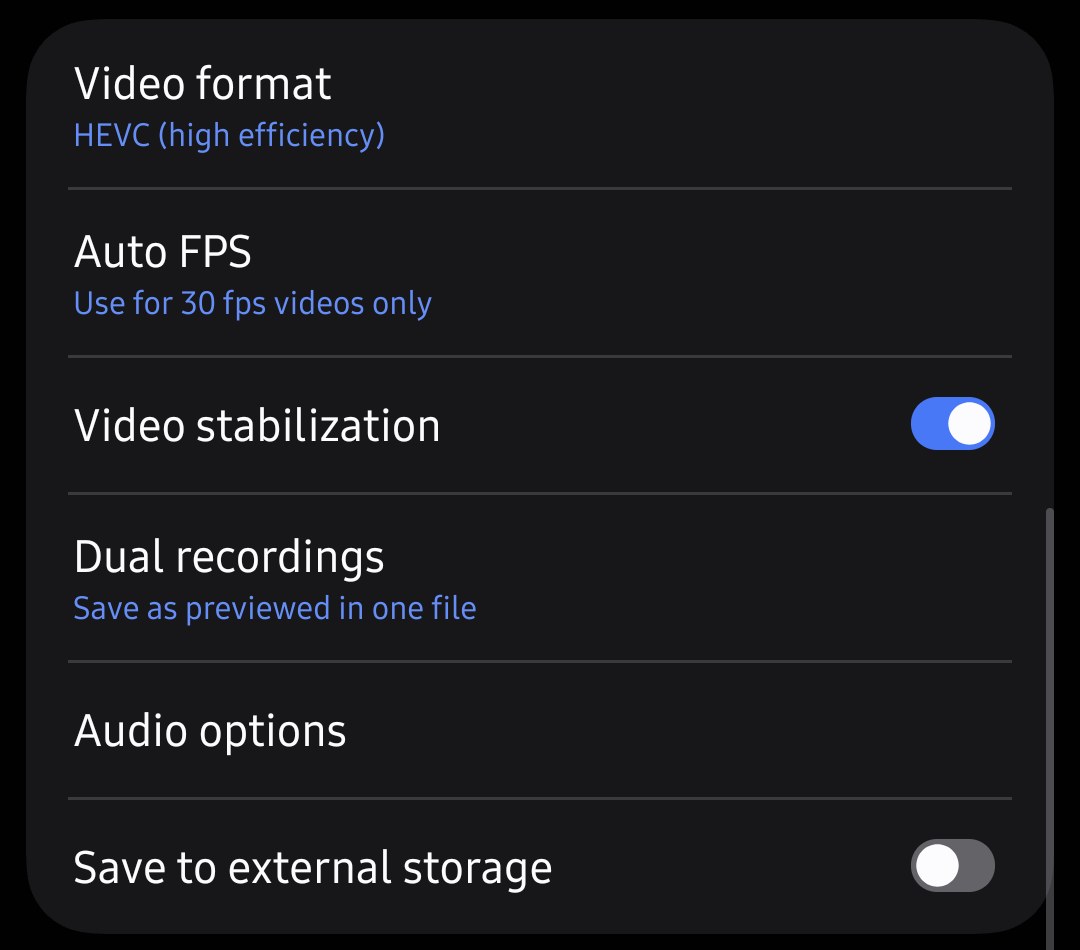
Turn off Video stabilization
Open Camera. Tap the Quick controls icon, represented by four dots. Tap the gear icon. Under Videos, turn off Video stabilization.
- 2
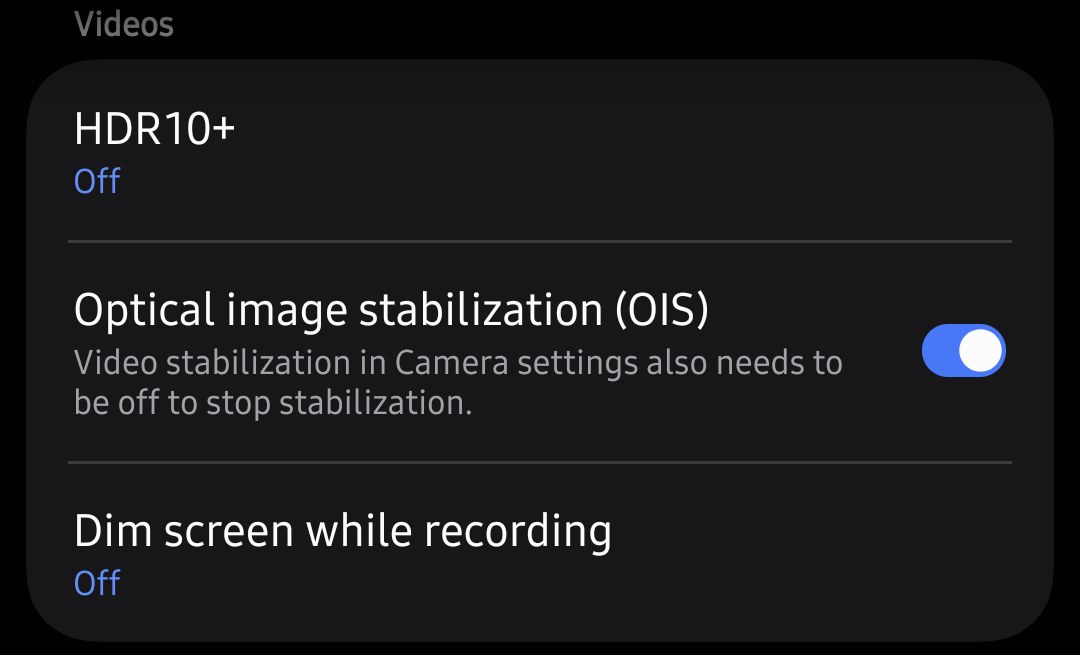
Turn off OIS in Camera Assistant
Scroll down and select Camera Assistant (it will download from the Galaxy Store the first time). Find the Videos section and toggle Optical image stabilization (OIS) to off. Our Camera Assistant guide covers the app's other settings.
- 3
Check that Super Steady is off
Tap the Video option and make sure the Super Steady icon on the top of the screen is not highlighted.
- 4
Record a short test
Shoot ten seconds of footage on the tripod or gimbal with OIS off. Play the clip back and see if there’s any wobble or drift at the end of a pan or tilt. If there is, repeat the shot with OIS on and compare the results.
- 5
Switch both back afterwards
OIS and Video stabilization will remain off once you’ve turned them off, so be sure to remember to turn them back on when shooting the next handheld video.


Super Steady in low light and under indoor lights
Samsung admits Super Steady isn’t always the answer, too. Its Super Steady info page (last updated March 2026) warns that Super Steady video may have slower shutter speeds that could lead to lower video quality and noisier images in low-light environments, so it’s best used in bright environments. In some lighting situations (for example, under fluorescent lighting), shutter speeds may be increased, and videos may contain flickering that appears as black streaks. It also advises keeping the camera at least a metre away from objects when shooting in Super Steady mode; Samsung says images may be blurred when shooting objects that are too close or when using 0.6x zoom.
So Samsung Super Steady video mode is a daylight tool, and in dim environments, indoors or at night, Video stabilization on the main 1x camera gives cleaner footage. Stick with that in dimmer situations and make sure you’re holding your phone with both hands, tuck your elbows in and walk heel-to-toe with slightly bent knees and you should be fine. Our video settings guide has the rest of the low-light settings.
Zoom makes every shake bigger
But for shooting at 5x zoom, brace yourself. At this focal length, even slight movement gets magnified and a small wobble at 1x becomes much more apparent. At longer zoom settings, you won’t be able to rely on Super Steady to keep your footage shake-free. In Tom’s Guide’s testing, Super Steady on the S26 only goes up to 2x zoom. For video beyond this, you’ll be at the mercy of the phone’s optical image stabilisation (OIS) and standard Video stabilization.
Find a railing or wall to lean on, or plant your elbows on a table, before you start recording video at 5x zoom. It also means that you need to pan and tilt slower to follow a moving subject, as at 5x zoom, a quick move of the phone takes you across the scene quickly. See our telephoto lens guide for when it makes sense to use each lens.
By contrast, the ultra-wide video looks comparatively more stable when you’re walking and shooting handheld, using standard Video mode. This is because any camera movement appears less pronounced within the expansive view it captures. As per Samsung’s recommendation for Super Steady use, try to stay at least a metre away from subjects. Anything closer to the phone can look distorted at the edge of the frame due to the broad field of view.
Horizontal lock
Samsung says Horizontal lock (available in Super Steady) utilises the accelerometer and gyroscope to detect the direction of gravity in real time and applies video stabilisation accordingly.
Horizontal lock keeps the horizon line level in videos even if you perform a full 360-degree roll with your phone. To access Horizontal lock, select Video mode, tap on the Super Steady icon and then select Super Steady with horizontal lock (depicted as a running figure in a square, according to SamMobile).
Horizontal lock could come in handy if you wish to record stable videos of sporting events (while you’re running or riding something, for instance). Like Super Steady, it’s capped at QHD and 60fps.

Horizontal lock was introduced with the S26 series. According to SamMobile, the S25 series and Z Fold7 also get it with One UI 9. The S24 series sticks with good ol’ Super Steady.
Super Steady (and consequently, Horizontal lock) isn’t available in Pro Video. Super Steady also maxes out at 60fps.
When a gimbal still earns its place
Super Steady does a good job of minimising bounce but loses out on resolution. Super Steady isn’t available in Pro Video, which is the only mode with Log on a Galaxy S25 Ultra running One UI 9. For planned shots, slow push-ins and anything you’ll be grading, a gimbal is mechanically more effective and you maintain your manual controls and 4K.
Our cinematic video guide covers those Pro Video settings, and the Log guide covers grading. A gimbal isn’t needed for locked-off shots and a small tripod will suffice (and cost you a whole lot less).
Should video stabilization be on or off on a Samsung phone?+
What's the difference between Super Steady and video stabilization?+
Which Samsung phones have Horizontal lock?+
Can I use Super Steady in 4K?+
Why is my Super Steady video grainy?+
Keep reading

Samsung AE/AF Lock: How to Lock Focus and Exposure
How to lock focus and exposure on a Galaxy camera, adjust brightness after locking, split AF and AE in Pro mode, and use the lock for video and hyperlapse.

Samsung Concert Video Settings: Light, Sound and Flicker
Concert video on a Galaxy: settings for a bright stage in a dark room, loud sound and Zoom-in mic, LED-wall flicker, battery, storage and venue manners.

How to Shoot Cinematic Video on a Samsung Galaxy
Cinematic video on a Galaxy: Pro Video at 24 or 25fps with a 1/50s shutter, ND filters, Log or HDR, lens choice, focus pulls, sound and a simple grade.

Samsung Log Video: How to Shoot, Expose and Grade It
How to record Samsung Log on Galaxy S24, S25, S26 and recent foldables, expose it with zebras and LUT preview, use APV on the S26 Ultra, and grade it.