How to Shoot Cinematic Video on a Samsung Galaxy
Cinematic video on a Galaxy: Pro Video at 24 or 25fps with a 1/50s shutter, ND filters, Log or HDR, lens choice, focus pulls, sound and a simple grade.
The phone video look is often defined by decisions you don’t make: a fast shutter speed (freezing all action), deep depth of field (everything in focus) and constantly changing colour and exposure as you move around. If you want a more ‘cinematic’ look on your Galaxy phone, it’s mostly about taking control of these three areas. And thankfully, with Pro Video, you can. So, let’s walk through each one. Grading Log footage has its own Samsung Log guide, and everyday recording is in our video settings guide.

Starting settings by scene
- Find Pro Video in More in the strip of camera modes.
- You can use Pro Video on Galaxy S and Z phones and some Galaxy A-series phones (the Galaxy A26 user guide lists it).
- You can use these settings as a starting point. Check the exposure monitor and adjust the settings accordingly.

| Scene | Frame rate and shutter | ISO and filter | Lens | Colour |
|---|---|---|---|---|
| Daylight street or walk-and-talk | 24 or 25fps at 1/50s | Lowest ISO with an ND64 or a variable ND | 1x or 3x | Standard or HDR |
| Seated interview | 24 or 25fps at 1/50s | Low ISO, plus an ND if a bright window is in shot | 3x at head-and-shoulders distance | Standard, or Log if you'll grade |
| Golden hour landscape | 24 or 25fps at 1/50s | ND8 to ND16, removed as the sun drops | 0.6x or 1x | Log or HDR to hold the sky |
| Night street with shop lights | 24 or 25fps at 1/50s | Raise ISO before you slow the shutter | 1x main camera | Standard |
| Indoors under mains lighting | 25fps at 1/50s in 50Hz countries, 24fps at 1/60s in 60Hz countries | Raise ISO as needed | 1x | Standard |
| Slow-motion insert | 60fps at 1/120s, played at 40% speed on a 24fps timeline | About one stop more light than at 24fps | 1x | Match the main clips |
Frame rate and the 180-degree shutter
Motion blur is important to help make moving images look natural. Flicker-free shooting indoors with artificial lighting is also important. Both of these can be addressed with shutter speed, starting with the 180-degree shutter rule.
When shooting video, it’s best to keep your shutter speed at twice your frame rate to give your footage that natural-looking, cinema-style motion blur. For example, if you’re recording at 24fps, keep your shutter speed at 1/48s (or 1/50s if 1/48s isn’t available on your camera). In bright daylight, auto exposure mode can set your shutter speed much faster (1/2000s or faster in bright sun). This lack of motion blur is what makes video from phones look unnatural.
Frame rates vary depending on the country you’re in. In countries with 50Hz AC power, 25fps is used for TV production, and a 1/50s shutter also keeps most indoor lights from flickering. In countries with 60Hz AC power like the US, stick with 24fps. Shooting at 24fps with a 1/50s shutter indoors in the US can cause lighting flicker. Shooting with a 1/60s shutter speed indoors will avoid this flicker.
Nikon’s recommended flicker-free shutter speeds are 1/50s and 1/100s in areas with 50Hz AC power, and 1/60s and 1/125s in areas with 60Hz AC power.
| Frame rate | 180-degree shutter | Use it for |
|---|---|---|
| 24fps | 1/50s (1/48s exactly) | The classic film look for YouTube, short films and festival work |
| 25fps | 1/50s | The film look in 50Hz countries such as the UK and most of Europe |
| 30fps | 1/60s | Social clips, and footage cut together with other phone video |
| 48 or 50fps | 1/100s | Gentle slow motion when played back at 24 or 25fps |
| 60fps | 1/120s | Slow motion at 40% speed on a 24fps timeline |
| 120fps | 1/240s or the nearest setting | Short, slower inserts such as splashes or hair in the wind |
The available frame rates vary from model to model. For instance, the S24 Ultra and S25 Ultra offer 24, 30, 60 and 120fps in 4K/FHD in Pro Video (see SamMobile's One UI 9 feature comparison), while the S26 Ultra also has 25, 48, 50 and 100fps options and can even record at 25fps in 8K. Check what's on offer by tapping on the video resolution in Pro Video mode.
Auto FPS, available under Camera settings on One UI 9, is labelled for videos recorded at 30fps only, so it won't touch videos shot at 24/25fps.
ND filters keep 1/50s possible in daylight
Neutral density (ND) filters dim the image without affecting its colours. Each stop cuts the brightness by half. As a phone’s aperture is fixed, ND filters are the only way to limit the amount of light getting to the sensor in bright conditions in order to stick to your desired shutter speed (e.g. 1/50s).
ND64 lets you film in bright sunlight with a shutter speed of 1/50s. How do you work that out? When Pro Video’s sensitivity is set to its minimum, say the exposure monitor’s zebra function indicates that 1/3200s gives a good exposure. Six times halving gets you from 1/3200s to 1/50s (1/1600, 1/800, 1/400, 1/200, 1/100 and 1/50), which is exactly what ND64 does.
As a rough guide from the sunny 16 rule, full sunlight at f/1.7 (the aperture of the S25 Ultra’s main camera) and ISO 50 requires an exposure time of around 1/4500s, roughly six and a half stops more than 1/50s allows.
| Filter | Stops | Light let through | Typical use |
|---|---|---|---|
| ND8 | 3 | 1/8 | Overcast days and late golden hour |
| ND16 | 4 | 1/16 | Bright overcast or open shade |
| ND32 | 5 | 1/32 | Late afternoon sun |
| ND64 | 6 | 1/64 | Midday sun on the main camera |
| Variable ND | Adjustable | Depends on the setting | Changing light, with one filter for the whole day |
Phone ND filters either clip onto the phone or are part of a case-mounted filter system. Make sure they cover the lens you're shooting with, as each lens is in a different location on the back of the phone.
If you go beyond the range of a variable ND filter, a dark cross can creep into the frame (usually with the ultra-wide lens).
The Neutral density filter in Expert RAW's Labs is for stills only, so unfortunately it's not applicable for video.

Resolution, codec and bitrate
8K video maxes out at 30fps on the Ultras and will chew through storage space quickly, so we'd recommend shooting in 4K for almost all use cases, as it's more than sharp enough for any display and you'll still have access to all of Pro Video's frame rates. You'll also have a choice of HEVC (high efficiency, for smaller files) or H.264 (most compatible) video formats in Camera settings, with the latter being able to be played back pretty much anywhere. We'd enable High bitrate videos if you plan on doing any video editing, as the additional information captured helps when colour-grading.
Samsung's APV codec option on the S26 Ultra will capture even more information, with the company's developer site listing 796Mbps for 4K at 30fps in its HQ profile, compared to 35Mbps for HEVC HDR. It’s overkill for a video you plan to upload this evening and would be better suited to heavier colour grading work. In terms of storage, our Log guide covers what you'll need.
Log, HDR or standard colour
In the Video format menu on a Galaxy S25 Ultra running One UI 9 (as of November 2026), HDR and Log have their own switches (Log is marked as Pro video mode only), which will affect your editing workflow.
| Profile | Out of the camera | Editing room | Choose it when |
|---|---|---|---|
| Standard (SDR) | Finished contrast and colour | Least | You'll post the clip as it is or with a light grade |
| HDR (10-bit) | Brighter highlights on HDR screens | More than standard | Your viewers watch on recent phones and TVs |
| HDR10+ (Camera Assistant switch) | HDR with scene-by-scene brightness data | Similar to HDR | Your playback screens support HDR10+ |
| Samsung Log | Flat and grey until graded | Most | You'll grade every clip, on the phone or a computer |
According to a report by SamMobile, the S25 series captures HDR videos using the 10-bit HLG format. Enabling the HDR10+ option within Camera Assistant switches the recording format to HDR10+.
Videos shot in HDR may appear washed out or excessively bright when viewed on devices or apps that lack HDR support. For proper playback, Samsung’s official user guide notes that the viewing device must be HDR-capable.
For those looking to avoid post-production colour grading, recording standard video with a locked white balance can still achieve a similar cinematic effect.
Samsung confirms Log recording support on the S24, S25 and S26 series, as well as recent Z Flip and Z Fold models.
Lens choice and camera movement
When light levels drop, the 1x camera with the brightest lens and biggest sensor becomes your default lens. For head-and-shoulders portraits, 3x is the best focal length, since wide-angle shots from that close tend to make facial features look stretched out. The 3x focal length also makes backgrounds loom closer, which looks great in portraits as long as you have enough light to accommodate the smaller sensor on that camera. Big spaces and fast action filmed close up call for the 0.6x focal length.
Camera Assistant’s Auto lens switching option allows the camera to automatically switch between cameras to follow zoom and lighting changes. If you want to be sure a shot stays with a certain focal length, turn it off so dim lighting won’t switch from a 3x shot to a cropped-in image from the 1x camera.
If you move around as you film, do it slowly and purposefully for a more cinematic look. At 24fps, fast pans look jerky since each frame is so different from the last. Pan slowly, or move with your subject. Samsung says Pro Video mode doesn’t offer Super Steady stabilisation, so if you’re planning on lots of footage with lots of movement, plan on shooting with a gimbal. For those using a gimbal or tripod, our stabilisation guide breaks down what settings should be turned off on your phone.
Focus pulls in Pro Video
Focus pulls shift focus from one object to another, for example from a coffee cup on a table to someone’s face further back.
Depth of field refers to how much of a scene is in focus. Phones have small sensors, so most of the scene will be in focus. On cinema cameras, you can see the effect more clearly. So on a phone, focus pulls show best if there’s an object close to the camera and another much further away.
- 1
Turn on focus peaking
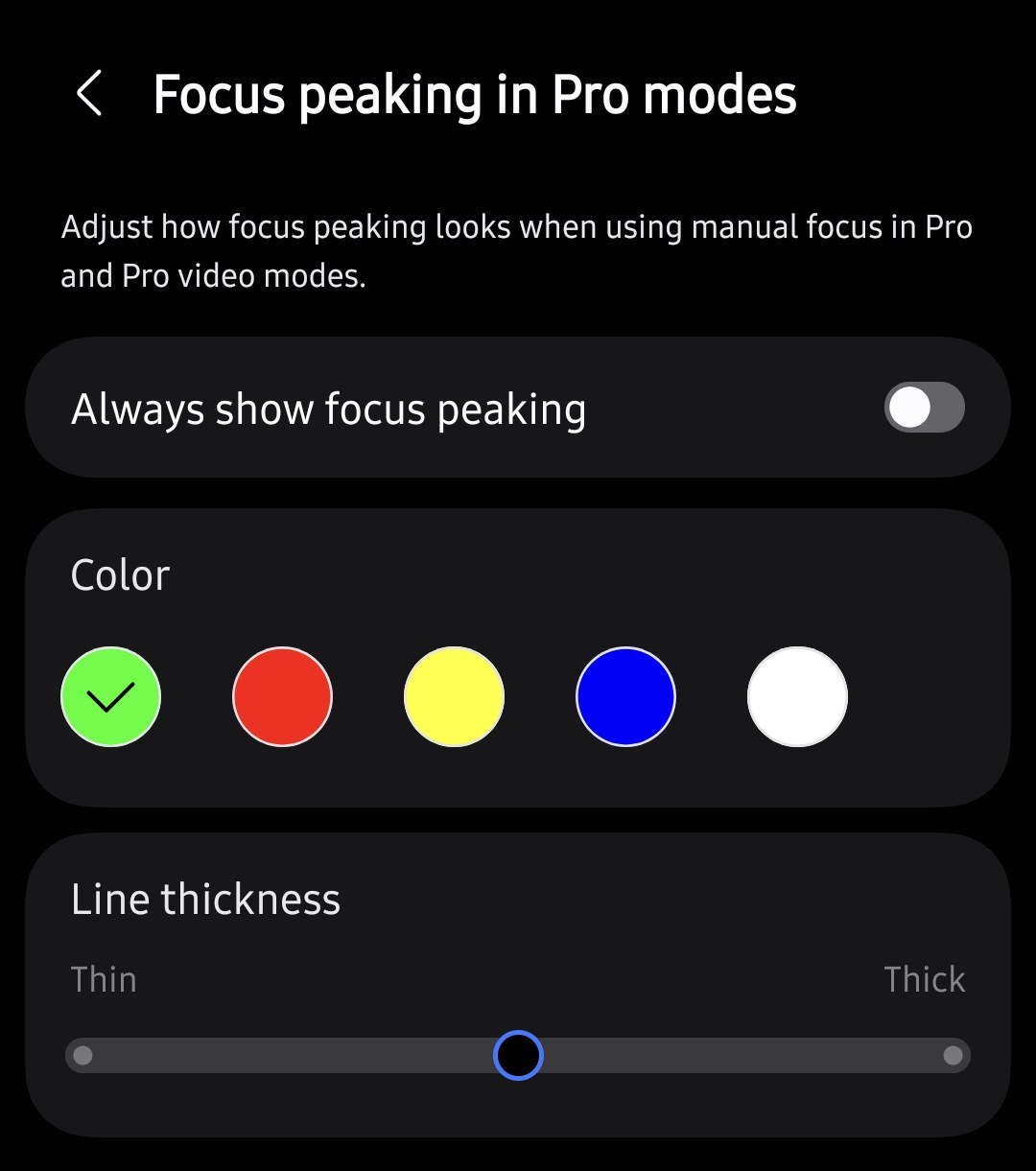
In Camera Assistant on One UI 9, open Focus peaking in Pro modes and enable Always show focus peaking, which overlays the areas of your shot that are in focus (according to the phone) in colour. You can choose the Color and Line thickness here too.
- 2
Decide how touch focus behaves while recording
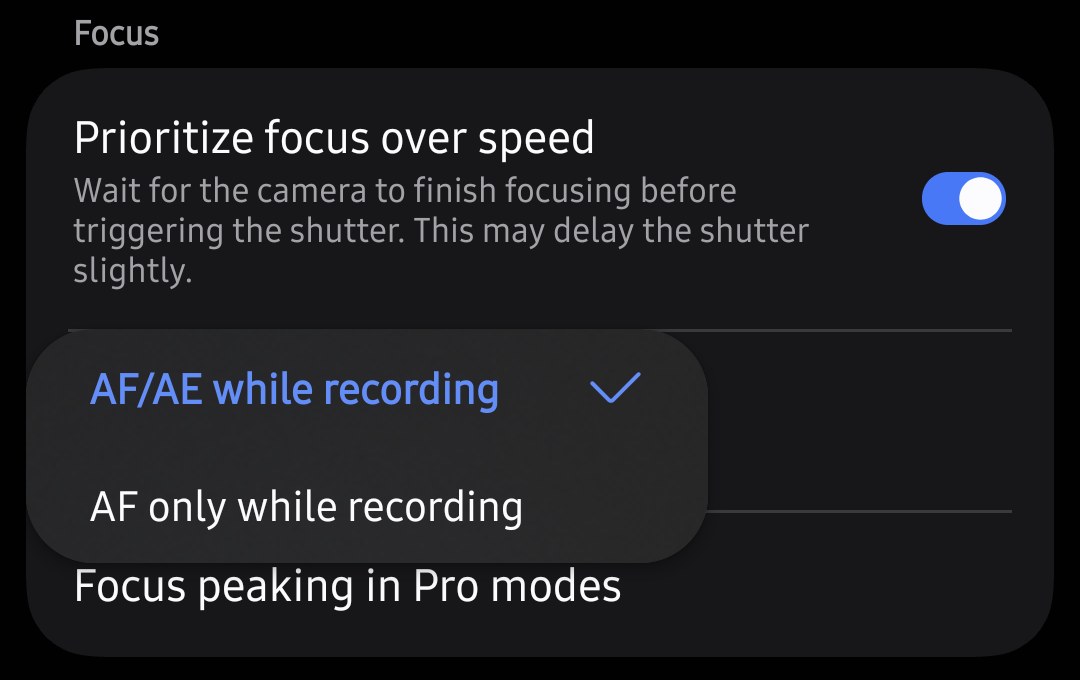
Also under Camera Assistant is a setting for Touch AF/AE in Pro video mode. According to SamMobile, you can choose to allow both focus and exposure to be changed, or just stick with AF changes, so experiment to see which works best for you.
- 3
Find your two focus points
In Pro mode, the manual focus range is between 0.00 and 1.00 (with 1.00 at the furthest end) on the S25 Ultra. Focus on your first subject, take note of where the slider is and do the same for your second subject.
- 4
Rehearse, then record
When you’re ready to record, start with focus on the first subject, pause briefly, then pull focus to the second over the course of a second or two. Practise a few times if you can, as a clunky focus pull will be more distracting than none at all!
- 5
Add a controller for repeatable pulls
Camera Assistant in One UI 9 allows you to connect a TILTA lens controller (sold separately) wirelessly. You can focus using the included wheel and add markings as required.


Sound that matches the picture
Bad audio is more noticeable than soft video, so it’s worth doing what you can to get good sound. The S26’s user guide states that in Pro Video you’re able to select which direction you want to increase the audio level from and you can even connect a USB microphone or pair a Bluetooth mic. On a Galaxy S25 Ultra running One UI 9, the Mic button in Pro video gives options for Omni, Front, Rear, USB, BT and BT mix with a slider to increase/decrease the mic level from -6 to +6. For interviews, getting as close as possible with a mic will help more than any camera trick. And don’t forget to record ten seconds of ambience at each location you film in. You’ll be glad you have it later when editing! Our video settings guide covers Zoom-in mic and the other Audio options.

A simple grade without Log
Even standard footage benefits from a little bit of colour grading, and so does HDR footage.
It’s not so much the app you use to colour grade, but more the order of operations. I’d recommend grading one clip per scene, and then copying those same settings to all the other clips within that scene. This way, all your clips within a scene will match up.
- Exposure should be set so that the brightest part of the image (typically faces or sky) is as bright as possible without clipping (going white).
- White balance can be set by finding something in the image that should be white and adjusting until it looks neutral. From there, you can tweak warmer or cooler for mood.
- Contrast can be increased for a harder look or decreased for a softer look. You can also adjust shadows and highlights separately for a softer look (brighter shadows, darker highlights).
- Colour/saturation should come last. Phones typically take pretty saturated images, so I’d recommend dropping it a few points for a more filmic look.
Gallery’s video editing capabilities can all be accessed from your phone, and our video editor guide breaks down all of the tools. On Log clips, these adjustments won’t mean much until you’ve converted them with a LUT, so see the Log guide.
What are the best cinematic video settings on a Samsung phone?+
Should I shoot 24fps or 30fps on my Galaxy?+
Do I need an ND filter for phone video?+
Do I need Log for cinematic video on Samsung?+
Keep reading

Samsung Concert Video Settings: Light, Sound and Flicker
Concert video on a Galaxy: settings for a bright stage in a dark room, loud sound and Zoom-in mic, LED-wall flicker, battery, storage and venue manners.

Samsung Video Settings for Better Galaxy Footage
Galaxy video settings explained, from resolution and frame rate by phone to stabilisation, Auto FPS, HDR, HEVC, Pro Video and audio for each kind of clip.

Samsung Log Video: How to Shoot, Expose and Grade It
How to record Samsung Log on Galaxy S24, S25, S26 and recent foldables, expose it with zebras and LUT preview, use APV on the S26 Ultra, and grade it.

Why Samsung videos look worse on Instagram, and the settings that help
Why Galaxy videos lose quality as Reels, the Instagram upload setting that helps, HDR's washed-out look, and the resolution and frame rate to use.