Samsung Concert Video Settings: Light, Sound and Flicker
Concert video on a Galaxy: settings for a bright stage in a dark room, loud sound and Zoom-in mic, LED-wall flicker, battery, storage and venue manners.
In a lot of concert footage, the singer is a glowing white blob, the bass is a blob of rumble, and the LED wall behind the band has dark bands rippling across it. Then the battery runs out before the encore. It’s all fixable with settings and habits on your Galaxy phone. This guide will discuss video, and our concert photography guide will discuss still photography of the same event. For typical use, refer to the recording settings described in the video settings guide.

Concert video problems and their fixes
| What you see or hear | Likely cause | Fix |
|---|---|---|
| The singer's face is a white blob | Auto exposure is brightening the dark room | Lock exposure on the performer and drag it down |
| Grainy, smeary footage | Too little light for the lens or the mode | Use the 1x or 3x lens and turn Super Steady off |
| Bass and vocals distort | The built-in mics are overloaded | Move away from the speakers, keep the mic holes clear or use an external mic |
| Dark bands roll across the LED screen | The lights pulse out of step with the shutter | Pro Video at 1/50s or 1/60s, matched to local mains power |
| The picture jumps when you zoom | The phone switched to another lens mid-clip | Pick 3x or 5x before you record and stay there |
| A roar covers the music outdoors | Wind blowing across the mics | Shield the phone with your body, then use Audio eraser afterwards |
| Recording stops early | Heat, full storage or a flat battery | Drop to FHD, clear space and carry a power bank |
Starting settings by venue
| Venue | Resolution and frame rate | Lens | Stabilisation | Audio |
|---|---|---|---|---|
| Small club | 4K 30fps | 1x main camera | Video stabilization on | Zoom-in mic on |
| Theatre or seated hall | 4K 30fps | 3x | Video stabilization on, elbows braced | Zoom-in mic on |
| Arena from the stands | 4K 30fps | 5x on an Ultra, 3x on other phones | Video stabilization on, phone braced | Zoom-in mic on |
| Outdoor festival by day | 4K 30fps or 60fps | 1x or 3x | Video stabilization on | Body shielding the phone from wind |
| Whole set or long songs | FHD 30fps | 1x | Video stabilization on | Zoom-in mic on |
4K is the best balance for most gigs, and 30fps will be plenty. Shooting at 60fps can introduce more noise in low light environments as each frame has up to half the exposure time compared to 30fps. FHD video will be around a third the file size of 4K video and puts less of a demand on your phone, which can be significant if you’re shooting something like a two-hour set.
Exposure on a bright stage in a dark room
Tap on the subject (in this case the singer in the centre of the frame) to focus on them. On One UI 9, this will show a circle around the focus point with a padlock and a sun (exposure). Tap the padlock to lock AE/AF and then drag the sun icon down until you’re happy with the exposure (you don’t want to lose detail in the singer’s face/clothes, but it’s OK for the rest of the venue to be very dark).
Samsung says Nightography will automatically compensate for lighting changes during a clip (which can look weird when the lights are flashing around), so it works best between songs! Auto FPS (found in Videos in Camera settings) alters the frame rate to help brighten up darker scenes, so it’s useful for showing off the crowd/venue etc but best avoided when filming the singer as it won’t look as smooth.
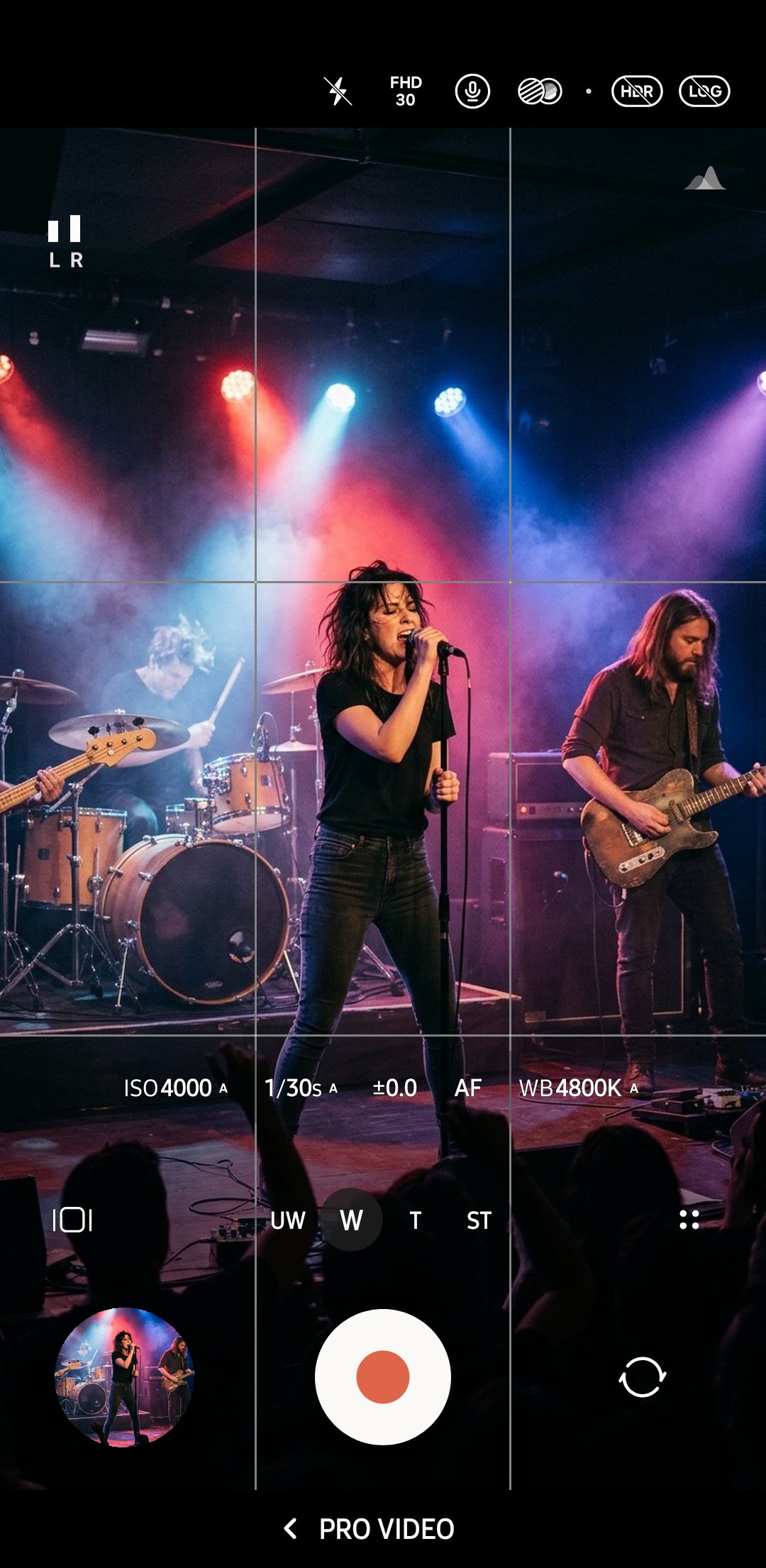
Alternatively, switch to Pro Video and manually adjust the shutter speed (use either 1/50s or 1/60s depending on your country’s mains power) and ISO. Increase ISO until you’re happy with the exposure during the brightest parts of the set, then leave it there. Again, darker sections will look darker, but at least you’ll have captured what the rest of us could see! Our Pro mode guide explains each control.
Loud sound, clipping and the Zoom-in mic
Phones record audio at levels appropriate for conversations, not concerts, and can distort (clip) at louder levels.
Clipping can make the top parts of sounds flat and can result in bass notes taking on a buzzy rumble that’s difficult (if not impossible) to correct in audio editing software.
Because Samsung doesn’t appear to offer any controls for built-in microphone recording levels in the S26’s user guide, your best bet is to adjust your position (and anything that might be covering the phone’s microphones).

- If you’re recording a concert, try standing a few metres away from the speaker stacks and subwoofers instead of right in front of the barrier. You might get a better recording that way.
- Don’t cover any of the microphone holes with your fingers when holding your phone! There’s more than one mic on Galaxy phones, including holes in the top and bottom edges of the phone. Your user guide has a page that shows you where all the bits are on your phone.
- Samsung says Pro Video mode offers the ability to prioritise audio coming from certain directions. It’s also possible to use a USB microphone, or pair a Bluetooth mic. If you use an external microphone that has its own volume control, this is a good way to lower the input level.
| Audio option in Camera settings | What Samsung says it does | At a concert |
|---|---|---|
| Zoom-in mic | Records sound from the zoomed-in direction at a higher volume | Worth leaving on, since zooming toward the stage gives it more weight than the people beside you |
| 360 audio recording | Records 3D sound through Bluetooth headphones that support the feature | Only useful if you're wearing compatible earbuds |
| Audio playback | Lets media keep playing while you record | Leave it off, and note that media pauses when 360 audio recording is on |
Try these out on your midranger beforehand. We couldn’t find them in the Galaxy A26 user guide, but they’re under Audio options in Camera settings on the S26 series.
If you’re recording outside and wind is whistling into the holes for the microphones, you’ll hear a roar that could drown out the music.
Try standing with your back to the wind so your body shelters the phone.
Afterwards you can use Audio eraser in Gallery to reduce some types of sound before sharing the video, and according to Samsung’s S26 user guide, wind is one of them. SamMobile reports that the categories are voices, music, wind, nature, crowd and noise, which is handy if there’s someone shouting next to you.

LED walls, stage lights and flicker
Fast strobing/pulsing LED screens and many stage lights may appear to have horizontal dark lines/bands travelling up/down the screen. This is due to the camera shutter opening/closing at different points in the light’s pulse.
Samsung’s support page describes this as flicker from lights with a certain frequency and considers it normal camera behaviour.
Samsung’s Super Steady page adds that black streaking/banding can also be caused by using Super Steady indoors, as in some circumstances Super Steady can result in faster shutter speeds being used. So switch off Super Steady for indoor videos.
- 1
Switch to Pro Video
Go into Pro Video mode (via More in the mode strip), which allows manual control of shutter speed.
- 2
Match the shutter to the mains power
Choose a shutter speed of 1/50s or 1/100s in 50Hz power countries (the UK and most of Europe) or 1/60s in 60Hz power countries (the US etc.). Nikon recommends the same in its advice about flicker on its cameras.
- 3
Fine-tune for the screen
Be aware that LED screens will flicker according to their own refresh rate, so this may not sort it. Try moving up or down one shutter speed at a time, checking the preview screen as you go, until the banding improves or disappears.
- 4
Set ISO for the exposure
Choose an ISO speed to give the performer correct exposure. On the S26 series, Pro Video mode has 25fps and 50fps options to match 1/50s and 1/100s in 50Hz countries.

Zoom without losing the shot
Decide which lens you’re going to use before you start recording, because if you pinch your way up to 3x or 5x zoom during a clip, it’ll switch cameras, and you’ll notice a jump in framing and colour. 3x telephoto is enough for the middle of a club or a theatre, and 5x (available on the S24, S25 and S26 Ultra) will get you the stage at an arena. Beyond the optical zoom limit, you’re looking at a digital crop that doesn’t stand up well to concert lighting. Our telephoto lens guide compares the lenses.

Keep Super Steady turned off indoors, as Samsung warns it can introduce noise in lower light situations. In Tom’s Guide’s test, Super Steady on the S26 also caps zoom at 2x. You’ll get more usable tele video with standard Video stabilization if you either keep your elbows tucked in tight or prop the phone up on a handrail. The stabilisation guide provides a description of each of these options.
If you’re nervous about using zoom while shooting video, shoot 4K at a wider field of view and crop in during post. Samsung’s My FanCam feature (under Galaxy AI in the Gallery app) can do this for you, by tracking a single person you choose and saving a new, cropped video. It debuted on the Z Fold8 and Z Flip8 and is also listed under Galaxy AI on a Galaxy S25 Ultra with One UI 9. Be aware that Samsung says subject tracking doesn’t always work if subjects are wearing similar outfits or are very small (e.g. if you’re filming from the rear of an auditorium).
Battery, heat and storage
Limiting your video clips to songs you actually like means you’re also less likely to hit the 10-minute cap on high-res video that Samsung warns can kick in on some Galaxy phones (according to its US support page) if they get too hot, representing another consideration in a sweltering concert hall. (Samsung suggests shooting in FHD to avoid hitting the cap.)
Plus, shorter video clips will take up less room on your phone, requiring less power to record.

| Setting | Bitrate (HEVC HDR) | Per minute | Per hour |
|---|---|---|---|
| FHD 30fps | 12Mbps | About 90MB | About 5.4GB |
| 4K 30fps | 35Mbps | About 260MB | About 16GB |
| 4K 60fps | 52Mbps | About 390MB | About 23GB |
- Free up storage, as a two-hour film at 30fps in glorious 4K will be around 30GB in size.
- Ensure the phone is fully charged, and take a power bank with a short cable, because it’s easier to top up from a pocket between songs than try and hunt down a socket.
- Enable the Dim screen while recording option (under Videos in Camera Assistant), which dims the screen during recording to save battery and is less of a distraction to the people behind you.
- Save to external storage (under Videos in Camera settings) will allow you to record to a USB-C memory stick, although having a memory stick dangling from your phone isn’t ideal in a crowded venue.
Venue etiquette
- Always check the terms and conditions of your ticket and the venue’s website as some artists prohibit any phones being used and other venues may allow photos but not videos.
- Where permitted, stick to a minute or two of your favourite songs rather than attempting to film an entire show which you’re unlikely to ever rewatch.
- Keep your phone at chin or chest height, as holding your phone up with outstretched arms will annoy everyone standing behind you.
- Turn off flash and torch settings and keep your screen brightness down when taking photos or videos.
- Don’t stream or upload complete songs if this is against the artist’s or venue’s wishes.
What are the best Samsung video settings for concerts?+
Why does my concert video sound distorted?+
Should I turn on Zoom-in mic at a concert?+
How do I stop LED screens flickering in my concert video?+
Should I record concerts in 4K or 1080p?+
Keep reading

Samsung Video Settings for Better Galaxy Footage
Galaxy video settings explained, from resolution and frame rate by phone to stabilisation, Auto FPS, HDR, HEVC, Pro Video and audio for each kind of clip.

Samsung slow motion: Slow-mo, Instant slow-mo and the flicker problem
Slow motion frame rates for each Galaxy model, how to edit the slow section and use Instant slow-mo, and how to stop flicker under indoor lights.

How to Shoot Cinematic Video on a Samsung Galaxy
Cinematic video on a Galaxy: Pro Video at 24 or 25fps with a 1/50s shutter, ND filters, Log or HDR, lens choice, focus pulls, sound and a simple grade.

Samsung Concert Photography: Which Mode and Settings to Use
Concert photography on a Samsung Galaxy: Photo, Pro and Night mode compared at a gig, settings for stage light, LED flicker fixes, lenses and editing.