Samsung slow motion: Slow-mo, Instant slow-mo and the flicker problem
Slow motion frame rates for each Galaxy model, how to edit the slow section and use Instant slow-mo, and how to stop flicker under indoor lights.
There are two ways to get slow motion video on your Galaxy phone. You can either use the Slow motion video mode or you can use Instant slow-mo (available for regular videos in the Gallery app).
Slow motion video mode will give you better results for fast action videos while Instant slow-mo is handy for videos where you can’t predict when the action will take place.
If you’re shooting indoors, your slow motion videos may suffer from flickering due to the lighting. Fortunately, there’s a solution for that too.

Slow motion frame rates by Galaxy model
Slow motion speed is determined by the recording frame rate. For example, if you shoot video at 120fps and play it back at 30fps it will play back at quarter speed; shooting at 240fps will result in eighth speed playback.
The Samsung Galaxy S24’s support page lists quarter speed for UHD and quarter and eighth speed for FHD; what speeds are available to you will be determined by the fastest video recording speeds your phone supports.
| Phone | Fastest 4K | Fastest 1080p | Slow motion speeds |
|---|---|---|---|
| Galaxy S26 Ultra | 120fps | 240fps | 1/4 in UHD, 1/4 or 1/8 in FHD |
| Galaxy S26 and S26+ | 60fps | 240fps | 1/4 or 1/8 in FHD |
| Galaxy S25 Ultra and S24 Ultra | 120fps | 240fps | 1/4 in UHD, 1/4 or 1/8 in FHD |
| Galaxy S25 and S24 | 60fps | 240fps | 1/4 or 1/8 in FHD |
| Galaxy S26 FE, S25 FE and S25 Edge | 120fps | 240fps | 1/4 in UHD, 1/4 or 1/8 in FHD |
| Galaxy Z Fold8 Ultra and Z Fold8 | 120fps | 240fps | 1/4 in UHD, 1/4 or 1/8 in FHD |
| Galaxy Z Fold7, Z Flip7 and Z Flip8 | 60fps | 240fps | 1/4 or 1/8 in FHD |
| Galaxy S23 Ultra and S22 Ultra | 60fps | 240fps | Slow motion, with Super slow-mo as its own mode on older software |
| Galaxy A56, A57 and A37 | 30fps | 60fps | Varies, check the mode on your phone |
| Galaxy A17 | None | 30fps | Varies, check the mode on your phone |
Super slow-mo (960fps in HD, as Samsung described it on the Galaxy S10) was initially its own camera mode, limiting you to about 0.4 seconds of footage (played back over ~12 seconds). From the Galaxy S24 onwards, it’s been combined with Slow motion, giving you resolution options but removing the short time limit (on a Galaxy S25 Ultra running One UI 9, checked November 2026, there is just Slow motion under the More tab, no Super slow-mo).
On Galaxy A smartphones it’s a bit hit and miss, as Samsung’s camera modes page for the Galaxy A16, A26, A36 and A56 mentions both Slow motion and Super slow motion, but GSMArena doesn’t list an option faster than 60fps for the Galaxy A56, A57, A37 or A17. Have a look in the mode yourself to see what’s on offer.
How to record in Slow motion mode
- 1
Open Slow motion
Swipe the Camera app’s mode strip to More, then tap Slow motion. Tip: If you use Slow motion often, tap Edit on the More screen to add Slow motion to the Camera app’s main mode strip.
- 2
Choose UHD or FHD
If your phone supports 4K at 120fps, try the UHD option (you'll get really nice detail in quarter speed videos!). For eighth speed you need FHD, since you can get up to 240fps (although the detail will suffer). Tap the resolution at the top of the preview.
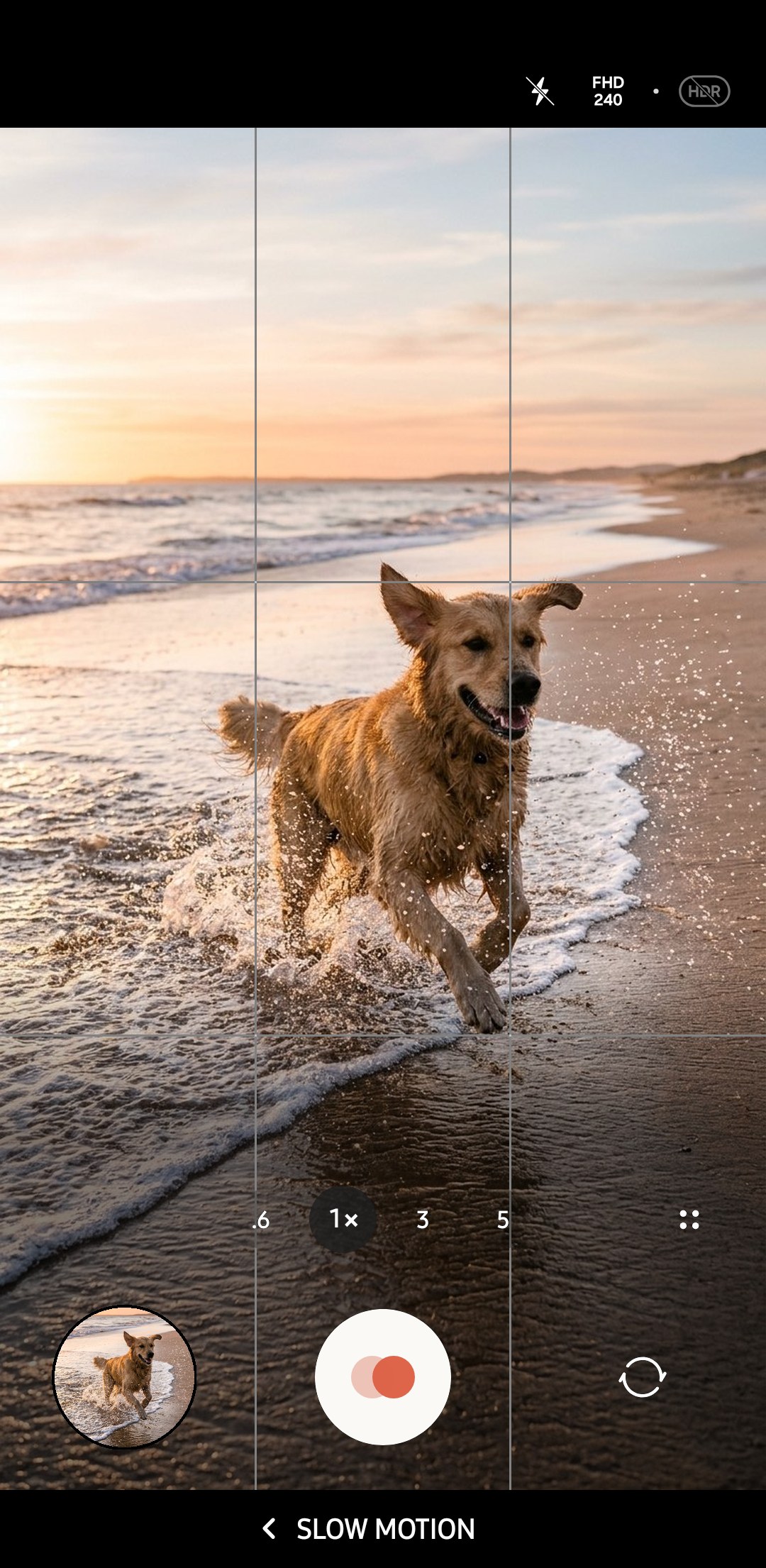
- 3
Give it plenty of light
You can’t shoot 240fps indoors in a poorly lit room and expect miracles, since your footage will be soft and grainy. Whenever possible, film outside or near large windows to take advantage of natural lighting. Remember, at 240fps you have 1/240 second at most to expose each frame, so lighting becomes extremely important!
- 4
Record a little before and after the action
Begin video recording a second or two before you expect the action to take place, and end a moment after. Your phone identifies the segment it deems to be the most rapid and plays it back more slowly; having a bit of lead-in footage allows the phone to accurately detect the fastest portion of the video.
- 5
Check the result
Tap the preview thumbnail to start the video. As per the user guide shared by Samsung for S26, the fast portion will be set as the slow one automatically and you can have up to two such sections in a video.

Editing the slow section
Open the video, tap the Edit icon and then the Speed icon. You should see a section editing bar for slow-mo videos in Gallery. Drag the brackets at the start and end of the bar to change where the slow section begins and ends. (This is also the process Samsung describes in its Galaxy S26 user guide, and Samsung’s user guides for other Galaxy phones describe the same bar.)
Once you’re finished with your edits, save your work as a copy in Gallery before sharing it, so the speed changes are baked in. Otherwise, other apps might not display the slow-mo portion of the video the same way Gallery does. Our Gallery app guide covers the rest of the editor, and the video editing guide goes further with trimming and music.
Instant slow-mo for clips you've already shot
Instant slow-mo works on ordinary videos after the fact. Touch and hold the screen while a clip plays in Gallery or Video Player, and the part under your finger plays in slow motion until you let go. That's how Samsung's Tips app describes it on One UI 9, and Samsung's support page says a pop-up then lets you save the slowed clip.
In March 2024, Samsung published an article explaining that AI Frame Rate Conversion analyses consecutive frames to determine the objects' movements and creates additional frames accordingly. It can be applied to normal videos shot at 24fps in HD to 60fps in UHD, and slow motion videos shot at 240fps or 120fps in UHD can be made even slower. According to Samsung's online support page, the results may not always be accurate, so videos shot at 120 or 240fps still produce better slow motion footage with more detail.
You can also use the speed control when editing your videos. According to Samsung, you can select a 1/4, 1/2, 1x or 2x speed and drag the handles to determine how long you want the effect to last.
Instant slow-mo was first introduced on the Galaxy S24 series before being rolled out to the Galaxy S23 series, Galaxy Tab S9, Galaxy Z Fold5 and Galaxy Z Flip5. Samsung says it's available on select Galaxy devices and may not be supported on all video files.
Why slow motion flickers under indoor lights
Indoor lighting can also cause flickering when shooting in Slow motion. According to Sony’s camera troubleshooting resources, older fluorescent tube lights flicker 100 or 120 times per second, which comes from the 50Hz/60Hz frequency of electric current in different countries, while many LED lights flicker even faster. Flickering won’t be as pronounced at 30fps since the camera will have enough time during each exposure to capture both peaks and troughs of the light’s intensity, but at 240fps exposures are so short that some frames will be captured during brighter pulses of light and others during dimmer ones.
Samsung has included a warning about indoor lighting since at least the Galaxy S10, recommending users opt for bright locations with natural lighting instead to avoid potential flickering caused by artificial lighting.
Unfortunately the Slow motion section of the Galaxy S26’s user guide makes no mention of an anti-flicker mode, so your best options are to change the light or the frame rate to avoid the pumping brightness, or dark bands travelling across the frame, you’ll get indoors.

| Fix | How to do it | Phones |
|---|---|---|
| Use daylight | Shoot outdoors, or by a window with the ceiling lights off | Any Galaxy |
| Match 120fps to 60Hz power | In Pro video, record at 120fps with a 1/120 shutter, then slow it in the editor | S24, S25 and S26 Ultra |
| Match 100fps to 50Hz power | In Pro video, record 4K at 100fps with a 1/100 shutter, then slow it in the editor | S26 Ultra, which SamMobile lists with 100fps in Pro video while the S24 and S25 series miss it |
| Record normally and use Instant slow-mo | Shoot at 30 or 60fps in Pro video with a shutter matched to the mains, then touch and hold in Gallery | S23 series and newer flagships |
| Use a flicker-free light | A battery LED panel sold as flicker-free, or daylight through a window | Any Galaxy |
| Use a flicker-free shutter app | Blackmagic Camera has a flicker-free shutter setting for 50Hz or 60Hz | Phones Blackmagic supports |
Similarly, a 1/120 sec shutter speed on 60Hz power and 1/100 sec on 50Hz power are recommended by Nikon in their video manuals for reducing flicker because these exposures correspond exactly to one pulse of light for each type of power. However, these shutter speeds won’t necessarily solve all flicker problems since some lights (particularly LEDs) flicker at different rates. Daylight is always the best answer! Our shutter speed guide explains manual shutter in Pro video, and the Blackmagic Camera guide covers its flicker-free shutter.
Slow motion problems and their causes
- Samsung has removed Super slow-mo from newer phones, integrating this feature within the Slow motion menu.
- UHD isn’t an option when recording in Slow motion as your phone can’t shoot 4K videos at 120fps, so you’re limited to FHD.
- Instant slow-mo doesn’t activate when pressing and holding the screen. This feature is available on certain phones only, and according to Samsung, it may not work with all video file types.
- Videos appear grainy/dim. Shooting at a higher frame rate requires several times more light, so try getting closer to a window or shooting outdoors.
- Shared videos play back at normal speed. Save a copy of the video after editing it in Gallery’s video editor, and share that file instead of the original video.
Is it for Reels? Our guide to Samsung video quality on Instagram covers export settings, and the video settings guide lists every Galaxy's normal frame rates.
What fps is Samsung slow motion?+
Does the Galaxy S26 Ultra have 960fps super slow motion?+
How do I turn a normal video into slow motion on Samsung?+
Why does my Samsung slow motion video flicker?+
Can I change which part of a slow motion video is slow?+
Keep reading

Samsung Concert Video Settings: Light, Sound and Flicker
Concert video on a Galaxy: settings for a bright stage in a dark room, loud sound and Zoom-in mic, LED-wall flicker, battery, storage and venue manners.

Samsung Video Settings for Better Galaxy Footage
Galaxy video settings explained, from resolution and frame rate by phone to stabilisation, Auto FPS, HDR, HEVC, Pro Video and audio for each kind of clip.

How to Shoot Cinematic Video on a Samsung Galaxy
Cinematic video on a Galaxy: Pro Video at 24 or 25fps with a 1/50s shutter, ND filters, Log or HDR, lens choice, focus pulls, sound and a simple grade.

Why Samsung videos look worse on Instagram, and the settings that help
Why Galaxy videos lose quality as Reels, the Instagram upload setting that helps, HDR's washed-out look, and the resolution and frame rate to use.