Samsung Hyperlapse: Time-Lapse Speeds, Night Mode and Star Trails
How to use Hyperlapse, Samsung's time-lapse mode: the right speed for each scene, night hyperlapse and star trails, time limits and tripod habits.
The Galaxy camera’s Hyperlapse mode will capture events that take place over the course of minutes or even hours and condense them into videos that play back quickly, allowing you to watch things like clouds quickly moving across the sky or people quickly moving through town squares.
Hyperlapse can be found on the list of modes in the Camera app or under More, and will allow you to choose how sped up you want the footage to be (i.e. how much real time will be condensed into each second of video).

Hyperlapse speeds and when to use them
Samsung's CamCyclopedia has more info on the feature and describes two types of speed – night and day.
Daytime footage will use video stabilisation while footage taken at night will use longer exposures to brighten things up and can show light trails from moving objects.
The number refers to the speed-up, so 30x means everything happens 30 times faster, where 30 seconds in real life will be one second in the resulting video.
| Speed | Mode | Good for | Recording time for a 10-second clip |
|---|---|---|---|
| Auto | Day or night | Handheld clips and changing light | Varies, since the phone picks the speed |
| 5x | Daytime | Slow walks and people at a market | 50 seconds |
| 10x | Daytime | Cooking, drawing or building something | About 1 minute 40 seconds |
| 15x | Daytime | Busy streets and café scenes | 2.5 minutes |
| 30x | Daytime | Traffic, crowds and fast clouds | 5 minutes |
| 60x | Daytime | Sunsets, sunrises and slow clouds | 10 minutes |
| 15x night | Night | City lights and car trails | 2.5 minutes |
| 45x night | Night | Light trails over a longer stretch | 7.5 minutes |
| 300x night with Star trails | Night | Stars wheeling across the sky | 50 minutes |

In Auto, Samsung says the phone will select day/night before recording, based on the amount of light and phone movement, and vary between 10x, 15x and 30x for day Auto depending on whether you’re moving or standing still.
Set the speed (based on how fast your subject is changing) and recording length. You can trim in Gallery later, but you can’t add on more, so plan ahead. If you want a 20-second sunset at 60x, that’s 20 minutes of recording.
How to record a time-lapse with Hyperlapse

- 1
Open Hyperlapse
Launch the Camera app and tap More > Hyperlapse. You can also drag Hyperlapse into your Camera’s main mode list (under More > Edit).
- 2
Choose the speed
Tap the speed icon to choose the desired playback speed. According to Samsung’s instructions, Auto is flanked by appropriate speeds for day and night shooting.
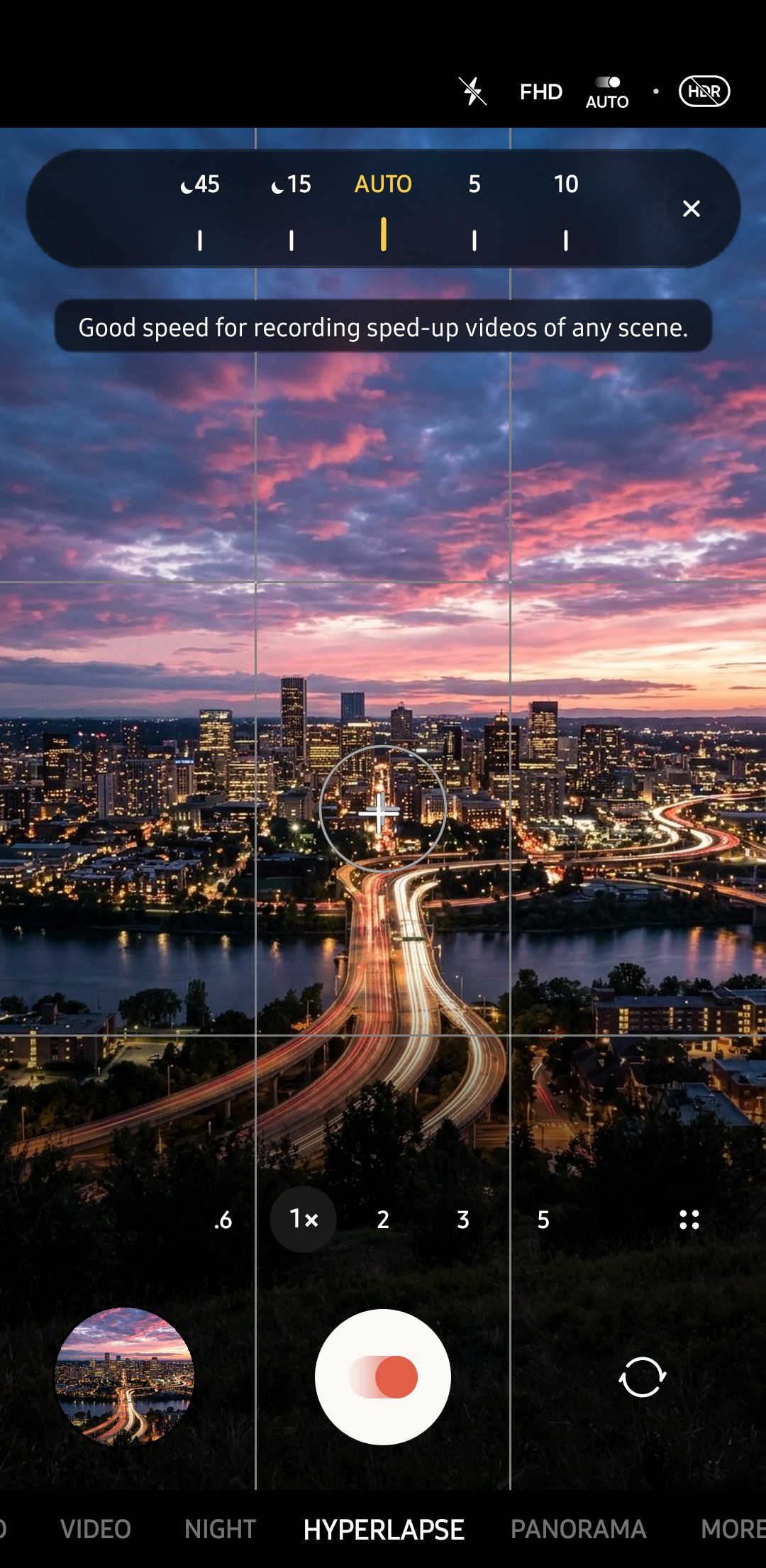
- 3
Set the resolution and a time limit
You can also select a resolution and stop recording automatically after 10, 30, 60, 120, 180 or 300 minutes, or record without limit (per Samsung’s CamCyclopedia). If you expect to shoot long hyperlapses, setting a limit will help prevent your phone from running out of storage space and draining the battery.
- 4
Lock exposure for sunsets
To lock AE/AF, press and hold on an area in the frame. Samsung says this is good for shooting sunrises and sunsets, which otherwise could cause flickering as the phone constantly readjusts to changing light conditions. Our AE/AF lock guide tells you more about that gesture.
- 5
Steady the phone and record
Samsung advises using a tripod for hyperlapse videos (especially for night shots). Simply start recording and don’t touch the phone until you’ve captured the desired amount of video.

A small tripod with a phone clamp is enough, and our tripod guide compares options. Longer than half an hour? Hook up a power bank before you hit record and you won’t have to wonder why your video ended when it did.
Night hyperlapse and star trails
Listed in Samsung's S26 guide, the 300x night speed with its Star trails option lets you capture the stars as they move across the sky. Night versions of 15x and 45x are also listed, and as these use longer exposures you’ll find that images are brighter than reality and moving lights leave light trails.
Introduced on the Galaxy S23 series, the 300x night mode was dubbed Astrolapse by Samsung and utilises the wide rear camera. In 2023 Samsung said it was looking at rolling it out to the S22 and Galaxy Z Flip4 / Fold4. Night hyperlapse also makes an appearance on the selfie camera, a feature that also first appeared on the Galaxy S23 series. As per SamMobile, the S22 and Galaxy Z Fold4 didn’t receive Astro Hyperlapse with One UI 5.1, so check out the different speeds offered up within Hyperlapse on your particular Galaxy smartphone if you’re curious as to whether it’s supported or not. See our Galaxy S23 guide for how the rest of the S23’s camera stands up today.
Star hyperlapse settings
For the best results, Samsung recommends shooting Star trails at 300x in UHD quality.
You’ll need a tripod and some patience for this mode, and Samsung suggests recording for an hour, which results in about a 12-second video clip. So decide how long you want the final video to be before you start recording.
Full instructions are available on Samsung's Galaxy S23 tips page (it’s the first Galaxy phone with support for Star trails).
| Setting | Value | Why |
|---|---|---|
| Resolution | UHD | Samsung's S23 recipe uses it, and it leaves room to crop |
| Speed | 300x night | The speed Samsung pairs with the Star trails option |
| Star trails | On for lines, off for moving points | Draws each star's path across the frame |
| Time limit | No limit, or at least 60 minutes | CamCyclopedia lists automatic stops from 10 to 300 minutes |
| Recording time | 1 hour for about 12 seconds, 2 hours for about 24 | 300x turns 300 seconds of real time into one second |
| Screen | Dim screen while recording on | A Camera Assistant option that saves battery on long takes |
Pick a clear night and a site that’s as far from streetlights as possible, ideally with a rooftop or tree line on the horizon to provide some interest in the bottom of the frame. Make sure you’re using a decent full-size tripod, not a lightweight one (two hours is a long time to be still, particularly if it’s a breezy night!). Set it up on firm ground, with the legs spread wide and the centre column retracted. If there’s a hook at the bottom, hang your bag from it for added stability. Plug in your power bank. Don’t be tempted to use your phone screen or torch to illuminate anything in the scene: this will shine a light in the foreground of your shot, which will be picked up in every frame it touches.
If you forgot to enable Star trails, check out Samsung’s Edit suggestions page – it lists a Star trails effect for astronomy videos that Gallery may offer after you’ve shot your clip. On One UI 9, the Hyperlapse shooting mode was also conveniently found on the Galaxy S25 Ultra’s main mode strip alongside Night and other modes, so you may not need to use the More menu. Our astrophotography guide also goes into planning for dark skies.
Scenes that work
Clouds drifting over hillsides, shadows travelling around buildings or squares, tides coming in and anything else that’s changing steadily can be good subjects for a hyperlapse, as can the change in light after sunset. Our cloud photography guide and sunset guide cover the light side of those scenes. A busy square filmed from high up also has a toy-like look, which our tilt-shift guide recreates in still photos.
Avoid shooting at something totally static (such as an empty room or parked car) as it’ll look exactly the same when you speed the footage up – effectively making your hyperlapse nothing more than a series of stills.
Walking hyperlapses
Hyperlapse footage recorded during the day is stabilised, so it’s fine to use your phone without a tripod. Select Auto and walk at a steady pace while holding your phone with both hands at chest level. Avoid abrupt changes of direction or stopping suddenly as these actions will result in jerky movements in the footage. Choose a route that includes an interesting backdrop, such as a line of shops.
Try to avoid recording hyperlapse movies along a pavement at busy times of day as people walking towards the camera will appear and disappear very quickly. Keep your eye on an object in the distance and hold your phone so that this object remains centred in the image as you walk.
Common hyperlapse problems
- If the clip is too short, make sure you’re recording for long enough when shooting at 60x. For example, if you want to get a thirty-second clip when shooting at 60x speed, you’d need to shoot for at least thirty minutes!
- If nothing seems to move, the speed may be too low for the scene, or your subject isn’t moving (or isn’t moving enough) and may not be suitable for a Hyperlapse video. Try shooting clouds or traffic instead.
- If the brightness fluctuates, light changes during your Hyperlapse video may cause the brightness to fluctuate as the camera adjusts. Lock AE/AF before starting to shoot if necessary. (Note that for videos shot during the day and ending at night, some fluctuation is to be expected.)
- If the video is blurry, long exposure times at night can result in blurry videos if the camera moves. Use a tripod and make sure no one bumps into it!
- If the battery runs out, Hyperlapse video shooting can use a lot of battery. Make sure your phone is fully charged before you start, and consider setting a time limit to stop shooting.
What is hyperlapse on a Samsung phone?+
What speed should I use for a Samsung hyperlapse?+
How long should I record a hyperlapse?+
Which Samsung phones can record star trails?+
What are the best settings for a star hyperlapse on a Samsung?+
Keep reading

Galaxy S25 Ultra Night Mode: Best Settings by Scene
Galaxy S25 Ultra night settings by scene: which lens to use, where Night mode sits after One UI 9, what reviewers found, plus tripod, astro and video tips.

Samsung Night Mode: Sharper Low-Light Photos
How Samsung Night mode works, where to find it on One UI 8.5, how to keep night shots sharp, and when Pro mode or Expert RAW Astrophoto does better.

Samsung Shutter Speed: Freeze Action, Shoot Light Trails
Samsung Pro mode shutter speeds: what freezes action, the handheld minimum for each Galaxy lens, and 1 to 30 second exposures for water and light trails.

Samsung White Balance: How to Get Accurate Colors Every Time
How to set white balance manually on a Samsung Galaxy, with Kelvin values for common light and fixes for orange indoor photos and blue shade.