How to Use the Rule of Thirds on a Samsung Galaxy
Turn on the Galaxy camera grid (Composition guide or Grid lines), place subjects on the thirds, try Shot suggestions and fix framing with a Gallery crop.
Try breaking out of centre framing and start playing with the rule of thirds. On a Galaxy phone you can even enable grid lines to help with composition.
When a photo’s subject is dead centre with equal margins on each side, it can appear static and boring.

What the rule of thirds means
Divide the image into thirds both horizontally and vertically. This gives you four intersections, which are good places for focal points, and four lines, which are good for horizons or the line of a wall or roof. This isn’t a rule to be followed religiously but more of a guide, according to Digital Photography School.
Place points of interest at intersections. Placing your subject off-centre allows the image to breathe a little and gives the eye a place to rest. In a landscape you might put the horizon on one of the lines. In a portrait you might place your sitter’s eye on one of the intersections. In a picture of someone walking, you’d usually want the majority of the space to be in front of them, so they aren’t walking out of frame. It’s worth thinking about what’s in the ‘negative’ space as well as the subject.
How to enable the grid on Samsung Galaxy
With One UI 7 and above, Samsung has given this Camera setting a new name: Composition guide (according to Samsung, it displays grid lines and a level). With earlier versions of One UI, it’s called Grid lines (in its camera guide for some of its newer A series phones, Samsung calls this feature the rule of thirds grid in the US). For the switch name on each One UI version and what to do when the grid disappears, see how to turn on grid lines in the Samsung camera.
- 1
Open Camera settings
In the Camera app, tap Quick controls (the button with four dots next to the zoom controls) and then tap Settings (the gear icon). In One UI 6 and earlier, the Settings button is one of the icons across the top of the camera screen.
- 2
Turn on Composition guide
Find Composition guide under General and enable it. In older versions of Camera, Grid lines can be found within the main Camera settings list.
- 3
Choose grid lines, the level or both
On a Galaxy S25 Ultra running One UI 9 (checked November 2026), you’ll have three choices: Grid lines and level, Grid lines only and Level only. We’d recommend Grid lines and level to start with, as the latter will help keep your horizons level (the grid will give you something to line up as you compose).
- 4
Check the preview
Close Settings, and you'll notice the 3x3 grid of lines now superimposed over your camera's viewfinder. Don't worry: the grid won't be visible in any pictures you take, because it is just an onscreen guide. According to Samsung's S25 support page, you can also use the grid as a guide when shooting videos.
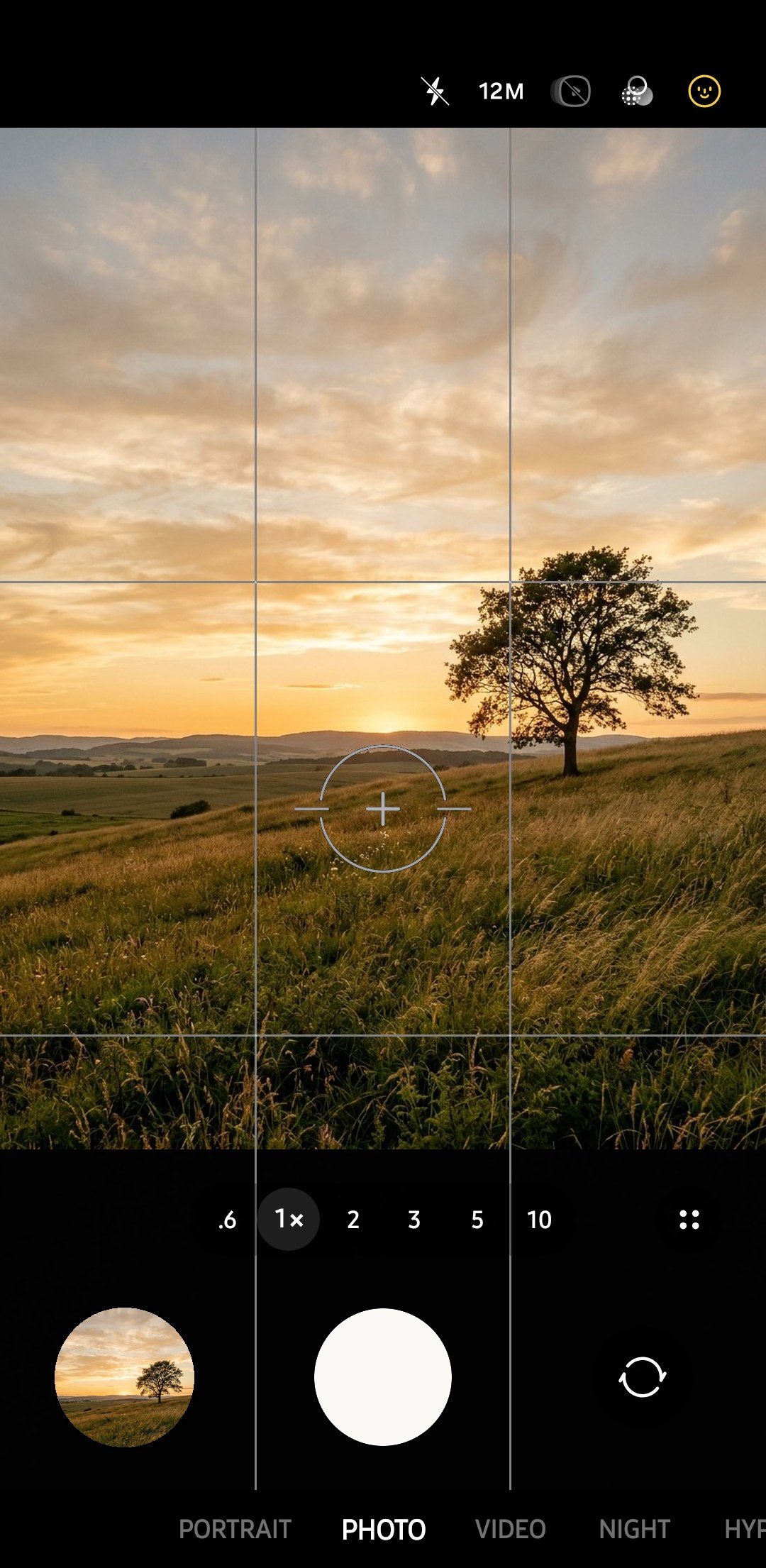


Where to put the subject

Find the point of intersection closest to the subject’s current position and move the phone until the subject sits there. In most cases a small move will be sufficient, and the table below covers most of the subjects you will encounter.
| Subject | Where to place it | Lens to try |
|---|---|---|
| Head-and-shoulders portrait | The nearer eye on an upper crossing point | 3x on S series phones, 1x on others |
| Person walking or cycling | On the third line behind them, with space ahead | 1x |
| Landscape with a dramatic sky | Horizon on the lower line | 0.6x or 1x |
| Landscape with a strong foreground | Horizon on the upper line | 0.6x |
| Tall building or tree | Along one vertical line | 1x |
The 3x telephoto lens on S series phones (such as the S25 Ultra’s 67mm-equivalent telephoto, as noted by GSMArena) can help take flattering portrait shots, as you can shoot from further away and avoid facial distortion. Before shifting your subject closer to the edge of the frame, touch and hold your subject in the viewfinder to lock the focus and exposure, according to Samsung’s online phone user guide. The focus/exposure will remain locked even as you move your phone to recompose your shot to, say, line up your subject with one of the vertical rule-of-thirds lines. The AE/AF lock guide explains the rest.
Let Shot suggestions show you a framing

Another handy Intelligent features option in the S25 series’ Camera settings is Shot suggestions. Enable this, and when using Photo mode you’ll get a suggestion for how to compose your shot, based on the position and angle of whatever you’re taking a picture of. According to Samsung’s user guide, it’ll turn yellow once you angle or move your phone into the suggested position. Again, we’d recommend comparing this against using the grid, and seeing which you prefer.
When to break the rule

Balance can be a powerful photographic tool and is especially effective when the subject is strongly symmetrical. Reflections on a calm lake or images down a long corridor are good examples of subjects where the main point of interest may well be located right in the centre of the frame. The symmetry guide covers centred framing, and if thirds start to feel rigid, the golden ratio guide explains a looser way to divide the frame.
Common mistakes and how to fix them
| Mistake | What to do |
|---|---|
| The horizon cuts the frame in half | Move the phone until the horizon sits on the upper or lower line |
| The horizon tilts | Turn on the level in Composition guide and line it up before you shoot |
| The subject looks lost on its point | Step closer, or switch to 3x on an S series phone |
| A moving subject faces out of the frame | Put them on the third line behind them so the open space is in front |

Leading lines are similar in that they also direct the viewer’s eyes. The leading lines guide shows how to draw the viewer toward a subject placed on a third. You could also have a look at our free 90-day Samsung photography challenge, which spends two weeks on composition and light.
Quick editing fix in Samsung Gallery
Cropping a photo can sometimes salvage a shot that wasn’t composed using the rule of thirds. The drawback to cropping an image is that you’re throwing away pixels. If you cropped one-third off the width and height of a 12MP photo, you’d be left with a ~5MP photo. Perform the same crop on a 50MP photo, however, and you’d still have a ~22MP photo. For this reason, the resolution guide recommends using 50MP in good light whenever you already know you’ll crop.
- 1
Open the editor
Open a photo in Gallery and tap Edit (pencil icon) > Crop. Pick a preset ratio such as square if the photo has to fit a set shape, or leave the crop free.
- 2
Drag the crop box
Drag the corners until the subject sits a third of the way in from an edge. Some models and One UI versions show thirds lines inside the box; on others, judge it against the edges.
- 3
Straighten and save
Level the horizon with the rotation control, then save your changes. On selected models and software versions, Samsung's support pages say you can open the editor again and use Revert to get the original back.
You can also quickly zoom into a photo using two fingers and then tap Quick crop to crop your photo without entering the crop editor. The photo editor guide covers the remaining Gallery features, and Samsung’s user guide notes that the cropped area is saved as a separate image.
How do I turn on the grid on my Samsung camera?+
Do the grid lines show up in my photos?+
Does the Samsung camera have a golden ratio grid?+
Keep reading

Rule of Odds in Photography, and How to Use It on a Galaxy
What the rule of odds says, how far to trust it, when three subjects beat two, and how to arrange odd groups with a Samsung Galaxy's lenses and grid.

Samsung Pro Mode Presets: Settings to Save by Situation
How to save and load Samsung Pro mode presets in Camera Assistant, with starting values for night streets, tripods, action, portraits and the moon.

Samsung Camera Not Focusing? Close-Up, Zoom and AF Fixes
Samsung camera won't focus? You're often closer than the lens allows (about 18cm on the S26 Ultra main). Fixes for close-ups, zoom, glass, dim light, cases.

How to Turn Off the Shutter Sound on a Samsung Galaxy
Open Camera settings and switch off Shutter sound. No switch on your Galaxy (UK and EU phones)? Mute the System volume. Korean and Japanese ones can't.