Samsung Motion Photos: Shoot, Edit and Turn Them Into Video
How to turn on Motion photos on a Galaxy, turn a Motion Photo into a video or GIF, set how much it records and use Best face to fix blinks in group shots.
You know that sinking feeling when you realise you've taken a photo just a split second too late? Well, Motion photos, Samsung's answer to this, keep a short video of everything happening around the time you took a photo, so you can turn it into a video and share, or have a replay. If you have a phone that supports Galaxy AI, this can even be used to correct blinking in group photos.

How to enable Motion Photos
- 1
Open Photo mode
Motion photos is a setting you’ll find in Photo mode.
- 2
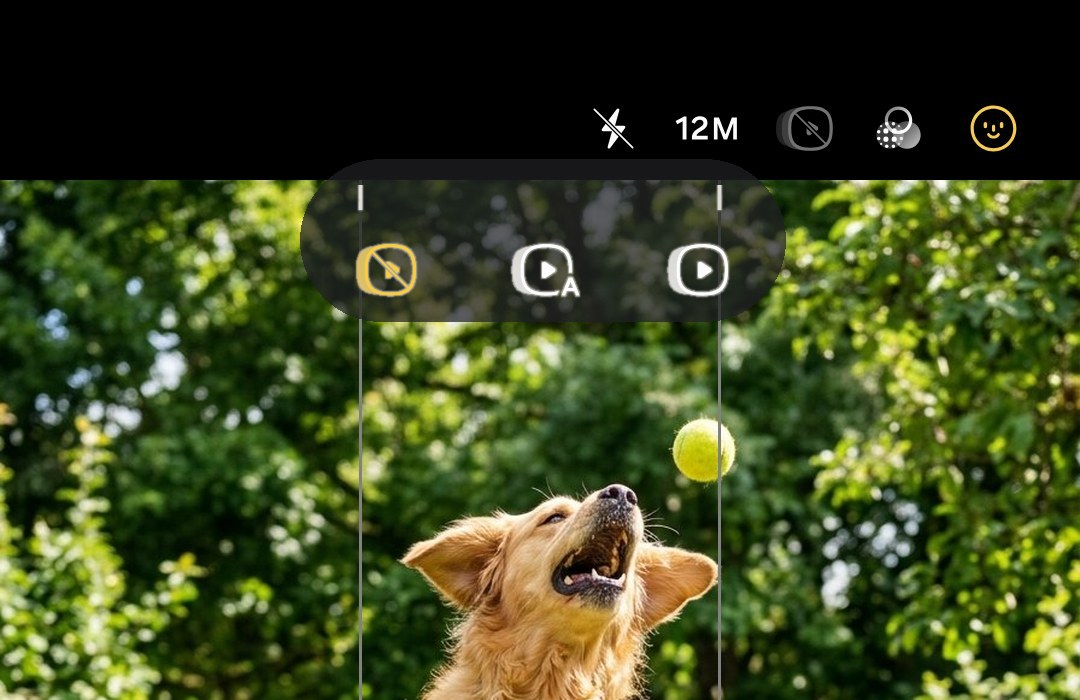
Tap the motion photo icon
On the Galaxy S25 Ultra (with One UI 9), the icon is in the line of icons at the top of the viewfinder screen. You’ll also find it in Quick controls (the button with four dots on it). Samsung lists it as being found in Quick controls in its Galaxy S25 and Galaxy S26 support pages. Select it and make sure it’s switched on (if you get a small menu, choose On).
- 3
Choose how much it records
Head to Camera settings > Photos > Motion photos. Here, according to Samsung’s Galaxy S26 support page, you can choose whether you want the motion photo to capture a few seconds before you press the shutter button or action before and after you press the shutter button. On this screen you’ll also find settings relating to sounds played when taking motion photos.
- 4
Shoot as you normally would
Press the shutter button once. Keep the shot steady for a second or two either side of pressing the shutter button, as your movement will be recorded too.

Motion photos can waste a lot of storage space, especially since many don’t show any movement at all (think of photos of landscapes, for example). To remedy this, Samsung has added an Auto option (spotted by SamMobile on the Galaxy S26 Ultra) which analyses whether there’s enough movement in a scene to merit saving it as a motion photo or not.
We’ve since verified the presence of this setting (as of November 2026) on One UI 9 for the Galaxy S25 Ultra. It appears as an additional option, between Off and On, when tapping the motion photo icon.
Play the clip and pick a different moment

To view a Motion Photo as a video, open it in Gallery. According to a how-to guide from Guiding Tech (last updated in 2024), tap the View motion photo button at the bottom of the screen to play the motion photo (the exact wording may be a little different, depending on your version of One UI; also, this option only appears for photos that have an associated video clip).
If you want to share a Motion Photo on social media but the still image portion isn’t quite as exciting as you’d like, you can save the video portion and extract a single frame from that. According to Samsung’s guide for the Galaxy S26, you can then tap the Capture icon at any point while the video is playing to save the displayed frame as an image. Just keep in mind that you likely won’t get as much detail in an image saved this way as you would with the original still photo, so this technique is best reserved for images you plan to display on-screen.
In situations where motion photos don’t help with timing, the burst mode guide covers taking a burst of full-quality photos in rapid succession, and Single Take can shoot for a few seconds and make a bunch of pictures and videos out of that footage.
How to turn a Motion Photo into a video or GIF
For phones/apps from other manufacturers, you may find that only the still image portion of a Motion Photo is available for sharing. If you want to share the motion portion of the photo, you’ll need to export the photo as a Video or GIF first. To do so on Samsung’s Gallery app, open the Motion Photo, select the three-dot menu, and select Export. Then, choose either Video or GIF. Those are the steps from Guiding Tech.
- GIF will bring up an editor, allowing you to make changes such as trimming the length of the video, adjusting the speed and choosing how it plays before saving.
- Video will be saved immediately as a separate video file to your Gallery and can be played back on pretty much any computer or phone.
According to Samsung’s Galaxy S26 guide, you can also touch and hold an object or person in a motion photo in Gallery and choose Save as GIF to export just that person or object (say your kid or pet) as a GIF, sans the background clutter.
Sharing videos or GIFs exported from motion photos is a good idea if the recipient is likely to view the photo on a non-Samsung phone. Your Gallery will still have the original motion photo with the video clip, so nothing’s lost in exporting it.
Fix blinks with Best face
Galaxy AI-powered phones can also use Best face on a group photo, selecting a better expression for each person. According to Samsung’s Best face help page, for group photos, Best face picks the best expression of up to five people using images in the Motion photo (must be turned on) and can apply the best expression of each person to the group photo. Motion photos should be three seconds or less for Best face to work. Photos with Best face applied can be saved with up to 12MP image quality.
- 1
Open the group photo
In Gallery, open a group Motion photo.
- 2
Find Best face
Select Details from the More options or swipe up on the photo and select Details, then tap Choose best face.
- 3
Pick the expressions
For each person, select the expression you want from the choices at the bottom of the screen, then tap Save copy to keep the original image too.
Best face debuted with One UI 7 on the Galaxy S25 series and came to the Galaxy S23 and newer phones with an update, Tom's Guide reported in April 2025. It's also listed on Samsung's Galaxy A57 support page. Our Best face guide covers which other phones have it and why the option sometimes doesn't appear, and our Gallery app guide covers the other editing tools.
When to leave it on

- With kids and animals, who are seldom still long enough to hold the same position as when you pressed the shutter button. See our children's photography guide for details.
- For group pictures, so you can use Best face to fix a blink afterwards.
- If you are photographing jumping or splashing, because you will not always manage to capture the very top of the arc.
- For action shots on holiday, e.g. a busker on the street or waves breaking on the beach. Our beach photography guide covers keeping the phone safe from sand and salt.
Motion photos are larger in file size than regular photos since there’s a video element stored with each one. Turn it off if you’re capturing lots of documents or landscapes, for example. Some phones (the S26 Ultra and an S25 Ultra on One UI 9) have an Auto option that makes decisions for you.
When motion photos let you down
- Try using more light. In low-light situations, your camera uses a slower shutter speed, which can cause motion blur. On phones running One UI 8.5 or higher, you can also set a minimum shutter speed in Camera Assistant.
- Hold your phone still for a moment after taking the photo. If you moved your phone immediately after taking the photo, it may cause the video to shake towards the end.
- Motion photos include a video file in addition to the photo, so they take up more storage space. Disable Motion photos when shooting stationary objects.
- Some apps don’t support motion photos, so they may only show the photo portion when you send a motion photo through them. You can save motion photos as GIF or video files before sharing them.
What is a motion photo on Samsung?+
How do I turn a motion photo into a video?+
Can I send a Samsung motion photo to an iPhone?+
Do motion photos take more storage?+
Keep reading

Best Video Editing Apps for Android on a Samsung Galaxy
The best Android video editors for Galaxy owners, from Samsung Studio to Premiere, CapCut, VN and LumaFusion, with watermarks, free limits and prices.

11 Apps to Turn Photos into Drawings on Android (2026)
Turn Samsung photos into sketches, watercolours, paintings and cartoons, from Galaxy AI's Portrait Studio to Prisma, Waterlogue and Sketch Me! Pro, with prices.

Samsung slow motion: Slow-mo, Instant slow-mo and the flicker problem
Slow motion frame rates for each Galaxy model, how to edit the slow section and use Instant slow-mo, and how to stop flicker under indoor lights.

How to Shoot Cinematic Video on a Samsung Galaxy
Cinematic video on a Galaxy: Pro Video at 24 or 25fps with a 1/50s shutter, ND filters, Log or HDR, lens choice, focus pulls, sound and a simple grade.