Samsung Audio Eraser: Remove Wind and Noise From Videos
How to use Audio Eraser on a Samsung Galaxy: clean up wind, crowd noise and music in your videos, the real-time version for YouTube, and which phones get it.
Audio Eraser is a Galaxy AI tool that splits a video's sound into types, such as voices, music, wind and crowd noise. You can turn the wind down and leave the voices as they are.
The version of Audio Eraser we’re looking at today is the one that lets you edit videos in your Gallery, and it works on old clips and on videos shot with other devices, not just your Galaxy. It arrived with the Galaxy S25 in early 2025. There’s another version of Audio Eraser that debuted with the Galaxy S26 that’s accessible from the quick panel and removes unwanted noises in real time as you play back videos in apps like YouTube, Netflix and Instagram. That version doesn’t alter the videos themselves and is aimed at making videos more enjoyable to watch. For this Gallery-based Audio Eraser explainer we used a Galaxy S25 Ultra running One UI 9 in November 2026.

Which Galaxy phones have Audio Eraser?
| Phones | Audio Eraser in Gallery | Real-time version in other apps |
|---|---|---|
| Galaxy S26 series | Yes | Yes |
| Galaxy S26 FE | Yes | Not confirmed by Samsung |
| Galaxy S25 series, S25 Edge | Yes | Yes, from One UI 8.5 |
| Galaxy S24 series, S24 FE, S25 FE | Yes (S24 from One UI 7) | Expected with One UI 8.5, not confirmed by Samsung |
| Galaxy Z Fold6 and Fold7, Z Flip6 and Flip7 | Yes | Expected with One UI 8.5, not confirmed by Samsung |
| Galaxy Z Fold8, Z Flip8 | Yes | Not confirmed by Samsung |
| Galaxy S23 and older, Z Fold5/Flip5 and older | No | No |
| Galaxy A series | No | No |
How to remove noise from a video with Audio Eraser
- 1
Open the video and tap Edit
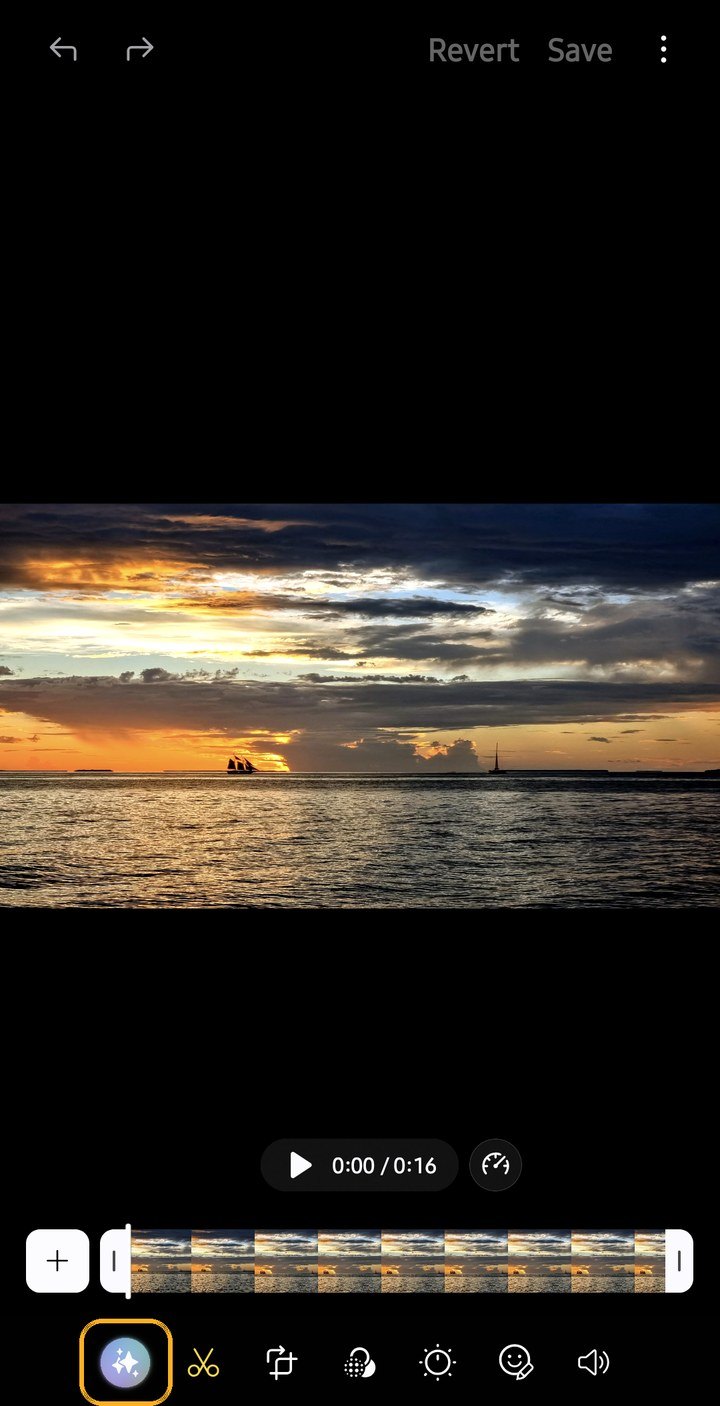
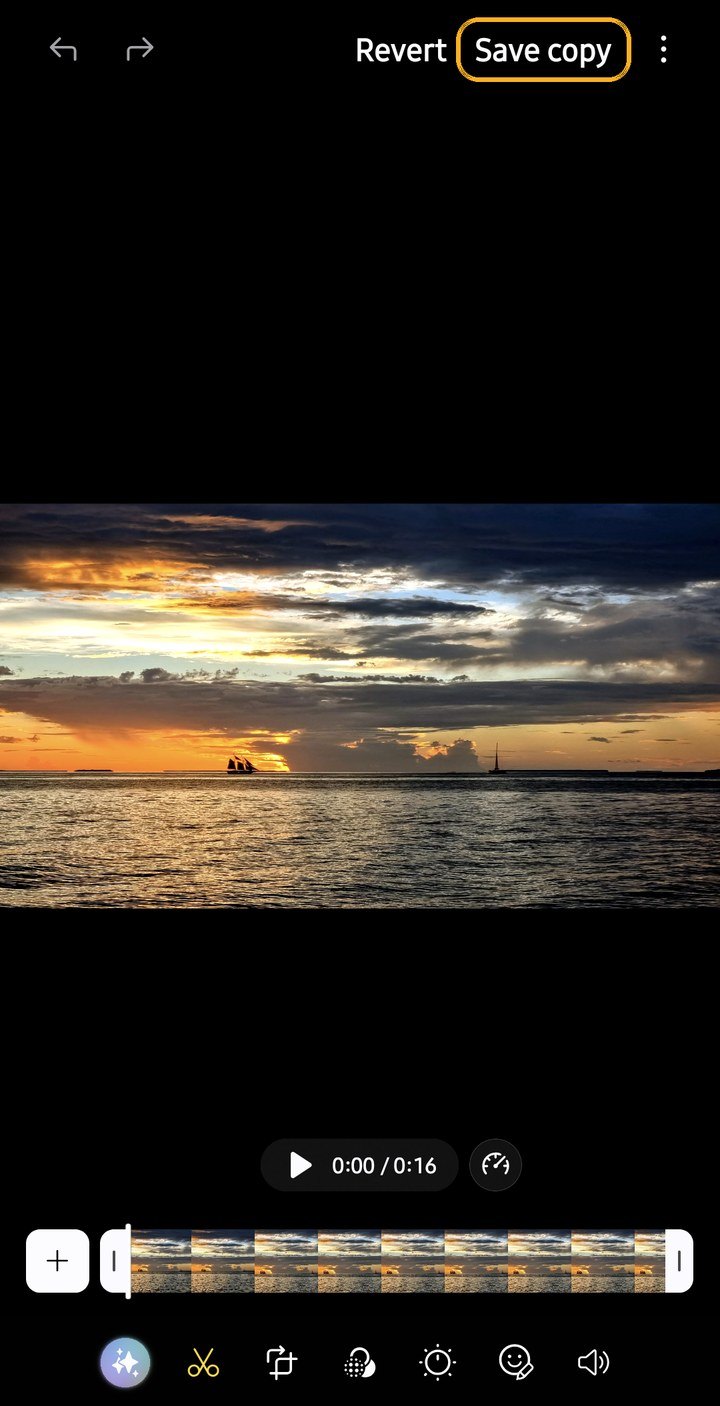
Open the Gallery app, select your video and tap Edit (the pencil icon). In the video editor on One UI 9, tap the sparkle Galaxy AI icon at the far left of the toolbar.
- 2
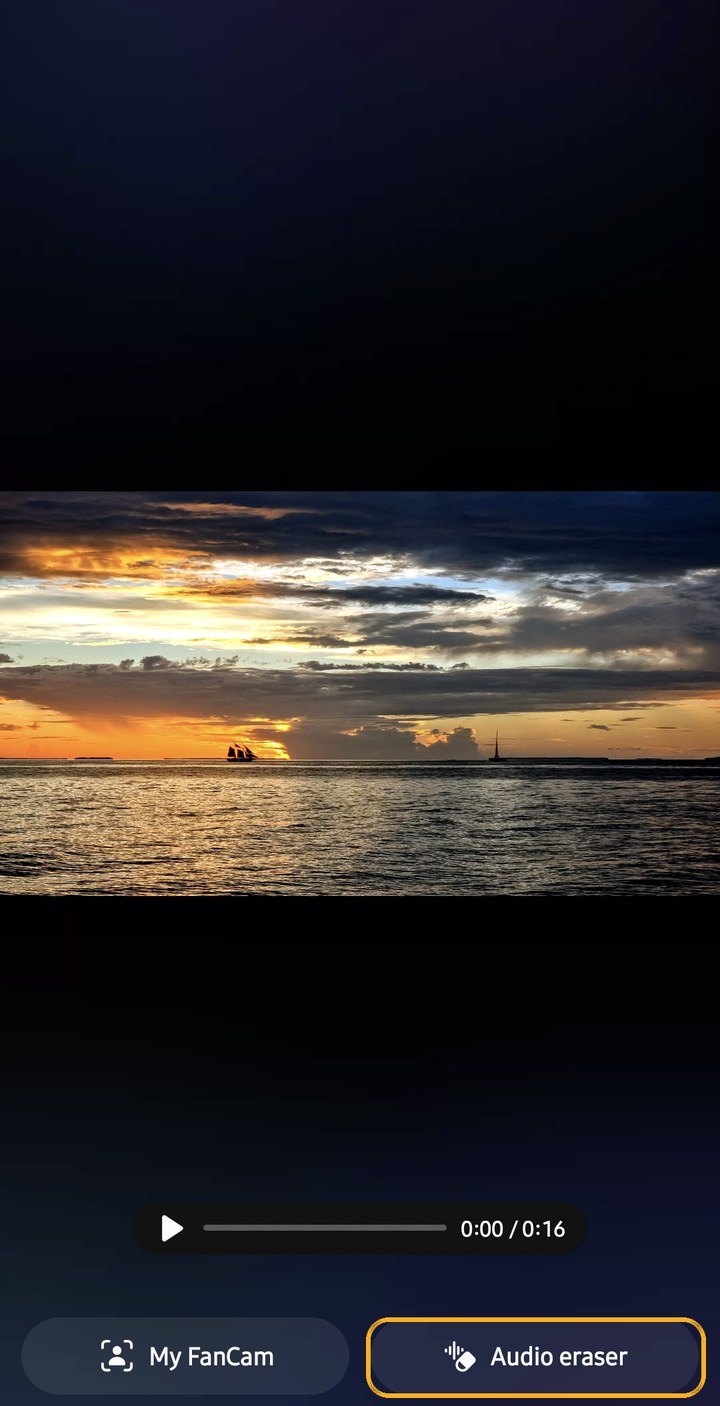
Tap Audio eraser
Two options appear, My FanCam and Audio eraser. Choose Audio eraser and Galaxy AI takes a few seconds to analyse the soundtrack. On One UI 8.5, it's under Audio (the speaker icon).
- 3
Pick a sound and turn it down
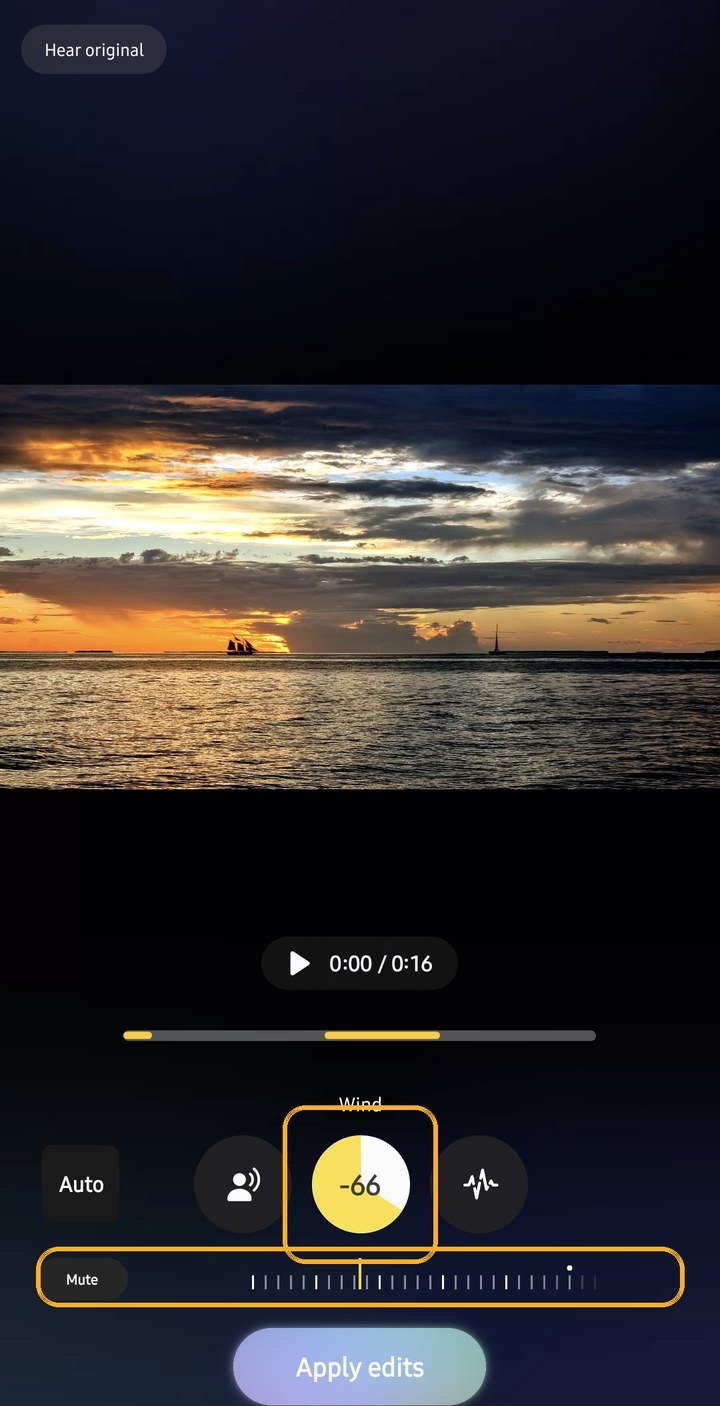
Each detected sound has its own button, and Audio Eraser highlights the timeline in yellow wherever that sound occurs. Select a sound, then use the dial below it: negative numbers make it quieter, -100 removes it completely, and positive numbers make it louder.
- 4
Try Auto, and compare
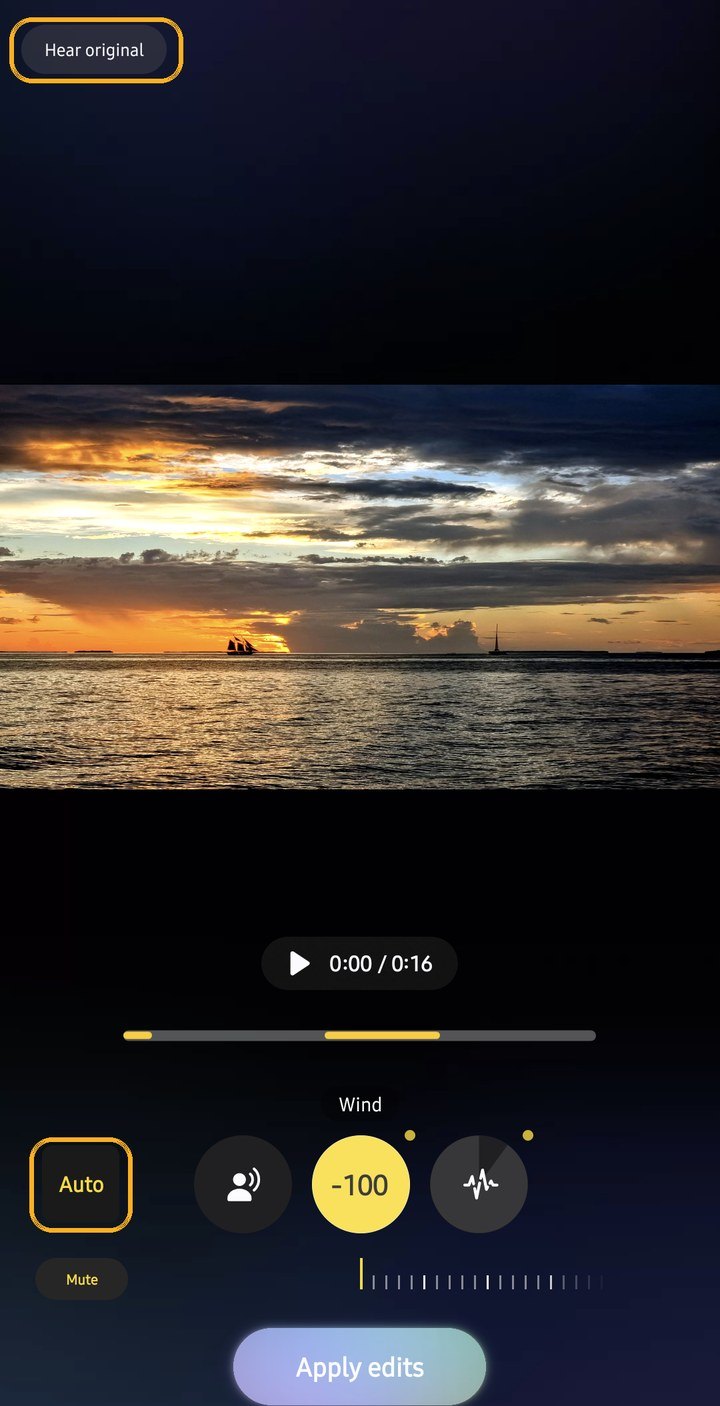
Auto sets the levels for you. In our test it set Wind to -100 and left Voices alone. Hear original, at the top left, plays the untouched sound so you can hear the difference, and Mute silences the whole clip.
- 5
Apply and save a copy
When you're happy, tap Apply edits, then Save copy at the top of the screen. Your changes are saved as a new video file and the original stays intact.


Audio Eraser doesn't always detect every sound. It sorts background sound into Crowd, Nature or Noise. Samsung warns that similar sounds can land in the wrong group, and short sounds, such as a single car horn, may not be detected.
In a test clip we made with a voice, simulated wind (brown noise) and a simple synthesised tune, Audio Eraser picked up voices, wind and noise, but filed the tune under noise rather than music, and flagged the wind for only part of the clip. Turning Wind down to -66 cut the low rumble by only about 1 dB as a result, because most of it was sitting in the Noise category. Check where Audio Eraser has put each sound, using the yellow highlights on the timeline, before you start adjusting the dials.
What each sound type is for
| Sound type | What it catches | When to turn it down |
|---|---|---|
| Voices | Clear voices close to the phone | Rarely. Turn it up to make speech clearer, or down to remove a chatty bystander |
| Music | Background music | Videos with music you can't post, such as a café playlist |
| Wind | Outdoor wind and gusts hitting the microphone | Beach, boat, mountain and cycling clips |
| Nature | Waves, birds and other natural sounds | When the sea drowns out what someone is saying |
| Crowd | Cheering, applause and chatter | Speeches, ceremonies and kids' school shows |
| Noise | Anything else in the background, like traffic or air conditioning | City clips and indoor hum |

Getting good results
- Go easy on the dial. Turning a sound all the way down can make voices sound unnatural, and one Samsung Members user found that cutting background noise made the speaker quieter too. Try a partial cut first and listen before you go to -100.
- If you can, get closer to the person you’re recording. Try not to cover the microphones with your hands and protect your phone from strong gusts of wind. Audio Eraser does a better job when the source material isn’t too cluttered.
- Before you save, check your recording with headphones. Certain settings can distort the quality of a recording, giving it a watery kind of effect. This is especially noticeable on headphones, and it's easy to miss on the phone's speaker.
- At concerts and other events where there’s a lot of ambient noise, make sure the singer/musician is still audible after editing. The AI may interpret their voice as part of the background noise and reduce that instead.
- Don't worry about messing up your original clip. Audio Eraser saves a copy, so your original clip never changes.
The real-time Audio Eraser for YouTube, Netflix and Instagram
With One UI 8.5 on the Galaxy S26, and later the S25, Samsung expanded Audio Eraser's scope, enabling background noise reduction for videos played in certain apps. Samsung has named YouTube, Netflix and Instagram, and reviewers have also used it with TikTok and Prime Video. To use this feature, you have to open the quick settings panel (swipe down from the top-right corner) while playing a video and tap on the Audio eraser option.
It’s worth noting that this implementation of Audio Eraser doesn’t offer the same level of customisation. Rather than the separate controls for up to six sound types you get when erasing audio from videos saved on your phone, there’s only a Strength slider here (with an additional Voice Focus option that unlocks when you crank up Strength). Also, Audio Eraser doesn’t let you save the edited video, it simply affects the audio output on the fly. Reviewers report that this real-time sound separation runs on the phone. However, Samsung has restricted its availability to certain apps, meaning you won’t be able to use it with your music/podcast apps or a web browser. Also, while some users aren’t a fan of the fact that the Audio Eraser shortcut always shows up in the quick settings panel when media is playing (and there is no way to remove it), a Samsung community moderator said this is intended.
Samsung's Video Player app, and the Gallery's video viewer, have a quicker version too. While a video plays, an Audio eraser button sits at the bottom right; tap it and it turns into a waveform as it cleans up the sound while you watch. There's no control other than the on/off toggle, no sliders to fiddle with, and it doesn't change the file.


Account, privacy and settings
Settings › Galaxy AI › Audio eraser explains where it works: Samsung apps like Voice Recorder and supported third-party apps, with the third-party controls in the quick panel. On our S25 Ultra with One UI 9 the page has no on/off switch of its own. You’ll need to be signed in to a Samsung account to use it. Besides the Gallery, Audio Eraser can also clean up Samsung Notes and Voice Recorder audio and call recordings. It reduces background noise automatically and brings voices forward.

It's unclear whether Audio Eraser keeps working when Process data only on device is turned on. SamMobile's 2025 testing suggests it does, but MakeUseOf's 2026 rundown lists it as a feature that's disabled.
Audio Eraser vs Google's Audio Magic Eraser
Google's Audio Magic Eraser does a similar job in Google Photos on the Pixel 8 and newer. Samsung's version is built into the Gallery's video editor, gives each sound type its own level and, since the S26, also works live in some apps. For finer control on a computer, try Enhance Speech in Adobe Premiere Pro. For the rest of Samsung's video tools, see our Samsung video editor guide, and for every Galaxy AI photo and video feature, our Galaxy AI hub.
Frequently asked questions
Where is Audio Eraser on my Samsung?+
Which Samsung phones have Audio Eraser?+
Does Audio Eraser work on old videos?+
Does Audio Eraser change my original video?+
Why is Audio Eraser not showing up?+
Is Audio Eraser free?+
Keep reading

How to transfer photos from a Samsung Galaxy to a Mac
Move photos from a Galaxy to a Mac with OpenMTP, Smart Switch, Quick Share's AirDrop option or Google Photos, plus what to know about HEIF on macOS.

How to Use Object Eraser and Photo Assist on a Samsung Galaxy
Erase, move and resize things in Galaxy photos with Object Eraser and Photo Assist, see which phones get each tool, and what the AI watermark and 12MP cap mean.

Samsung Photo Assist: How to Use AI Eraser, Move and Create
How to use Galaxy AI Photo Assist on One UI 9 and 8.5: AI eraser, Move, Create and Style, tested on a Galaxy S25 Ultra, plus the AI label and 12MP limit.

Why Samsung videos look worse on Instagram, and the settings that help
Why Galaxy videos lose quality as Reels, the Instagram upload setting that helps, HDR's washed-out look, and the resolution and frame rate to use.