Galaxy AI for Photos and Video
Samsung puts AI into almost every step of a photo now, from the camera's processing to erasing, moving and restyling things in the Gallery. Here's every Galaxy AI photo and video tool, what it's good for, where to find it and which phones get it, with our step-by-step guides. We're an independent photography school, not Samsung.
Fix and clean up photos
Remove what shouldn't be there, straighten what's crooked and rescue the shot where someone blinked.
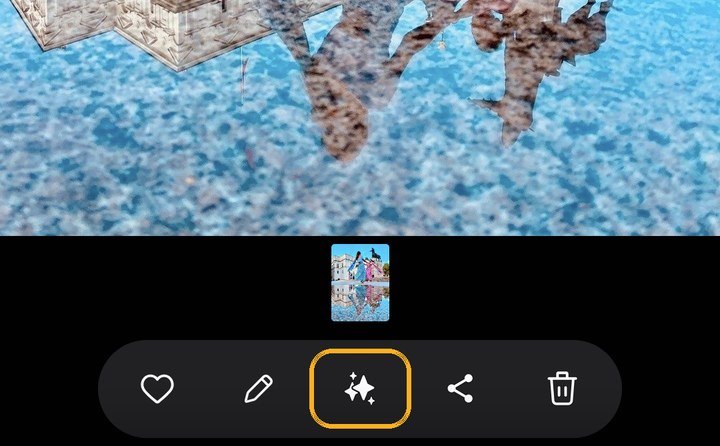
AI eraser (Photo Assist)
Tap or circle people and objects and AI fills the gap. Suggest erases picks out photobombers for you. It can leave the reflection or shadow behind, so check for those and erase them too.
- Where:
- One UI 9: open a photo in Gallery › Photo assist (the sparkle button) › AI eraser. One UI 8.5: Edit (pencil) › Photo Assist.
- Phones:
- S24 and newer (FE and Edge too), Z Fold6/Flip6 and newer. The S23 and Fold5/Flip5 have an older version, the S22 and Fold4/Flip4 have Generative Edit.
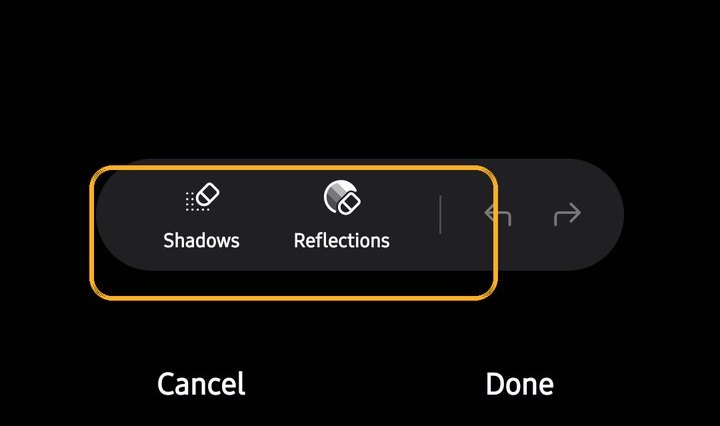
Object Eraser (classic)
The older, on-device eraser. No internet and no AI watermark, and it can also erase shadows and reflections. Best for small clean-ups.
- Where:
- On One UI 8.5, turn it on in Gallery › Settings › Photo editor settings › Object eraser and it appears in the editor's tools. On our S25 Ultra with One UI 9 it never appeared in the editor, and Tools › Tidy up offered only Shadows and Reflections. For offline erasing there, use AI eraser's on-device switch (Settings › Galaxy AI › Photo assist › AI eraser and Move). On the A37 and A57 it's the three-star icon.
- Phones:
- Most Galaxy phones, including the Galaxy A series.
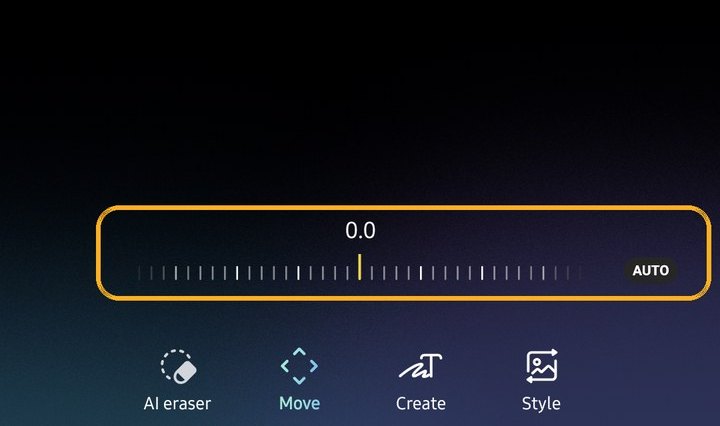
Move and straighten (Photo Assist)
Select a subject, drag or resize it, and AI rebuilds the background behind it. The same screen straightens a tilted photo without cropping the corners.
- Where:
- Photo assist › Move. Use the dial or Auto to straighten.
- Phones:
- Same as AI eraser.
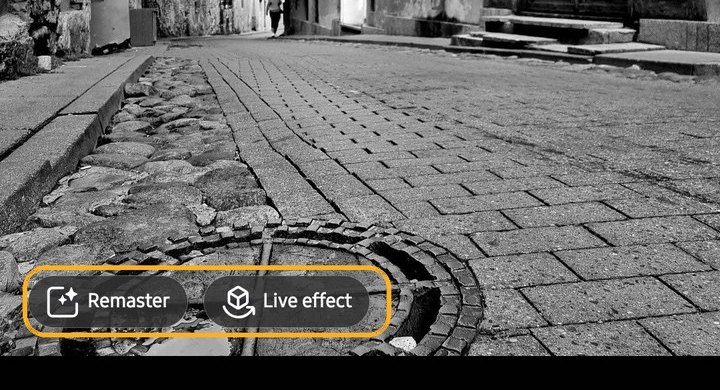
Edit suggestions: Remaster, Live effect and more
One-tap fixes the Gallery suggests for each photo, such as Remaster for old or soft shots, Erase reflections and shadows, Remove moiré, Background blur and Live effect. Colourise was there on One UI 8. On our S25 Ultra with One UI 9 it didn't appear on a black-and-white photo.
- Where:
- Open a photo in Gallery and swipe up. The suggestions appear as buttons on the photo.
- Phones:
- Most recent Galaxy phones; the A series gets a smaller set. Runs on the phone.
Best Face
Swaps faces from the other frames of a Motion Photo so nobody is blinking. Up to 5 people, and it uses real frames rather than inventing faces.
- Where:
- Open a group Motion Photo › swipe up › Choose best face.
- Phones:
- S23 (not the S23 FE) and newer, Z Fold5/Flip5 and newer, plus the A56 and A57. Motion photo must be on when you shoot.
Create and restyle
The generative side of Galaxy AI: add things that weren't there, restyle a photo or turn a sketch into an image.
Create (Photo Assist)
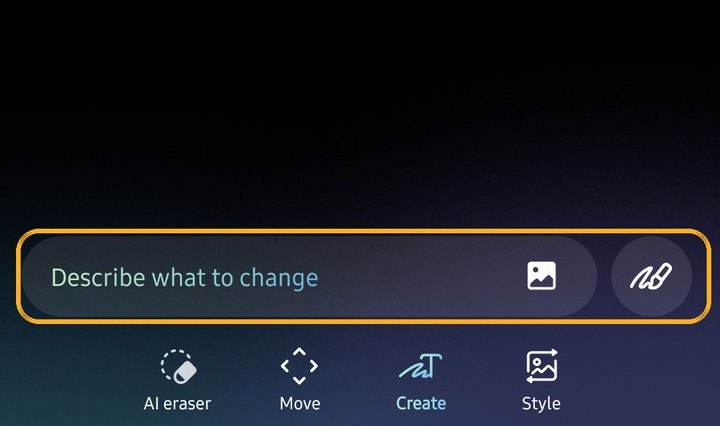
Type what to add or change, add an object from another photo, or sketch it with Sketch to image, and Photo Assist generates it into the scene.
- Where:
- Photo assist › Create. The paintbrush is Sketch to image, the picture icon is Add from image.
- Phones:
- S24 and newer, Z Fold6/Flip6 and newer, on One UI 8.5 or later.
Style (Photo Assist)
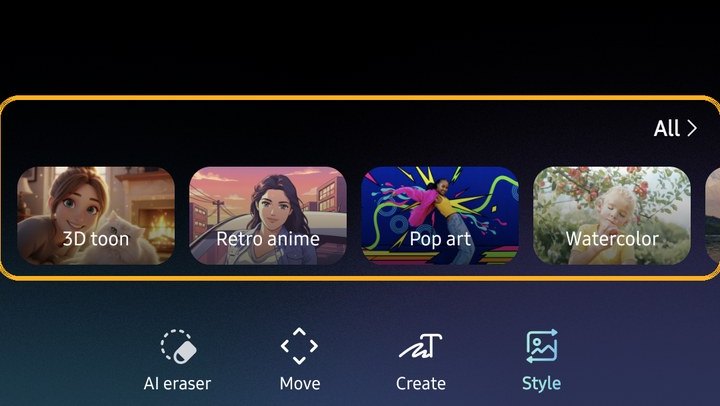
Restyle the whole photo in one of nine looks, such as watercolour, oil painting, pop art, comic or anime, or turn a portrait of a person or pet into an illustration (the old Portrait Studio).
- Where:
- Photo assist › Style, then pick a look from the row or tap All.
- Phones:
- S24 and newer, Z Fold6/Flip6 and newer, on One UI 8.5 or later.
Creative Studio
Samsung's AI art app, which replaced Drawing Assist. Turn sketches, photos and prompts into stickers, wallpapers, cards and invitations.
- Where:
- Open Creative Studio from the Apps screen or the Edge panel, or from Note Assist in Samsung Notes.
- Phones:
- S24 and newer (FE models too), Z Fold6/Flip6 and newer, on One UI 8.5 or later. Not the S23.
Video
Clean up sound, slow down the best moment, follow one person and cut a long clip down to its highlights.
Audio Eraser
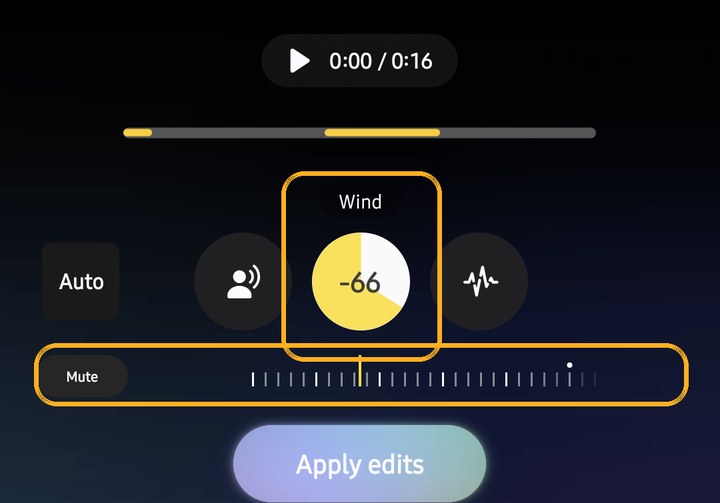
Separates a video's sound into voices, music, wind, nature, crowd and noise, with its own level for each, so you can turn down the wind and keep the voices. Saves a new copy.
- Where:
- One UI 9: open a video in Gallery › Edit › the sparkle Galaxy AI button › Audio eraser (One UI 8.5: Edit › Audio). Since the S26 there's also a real-time version in the quick panel for YouTube, Netflix, Instagram and TikTok.
- Phones:
- S24 and newer, and Z Fold6/Flip6 and newer. Not the S23, the Fold5/Flip5 or the A series.
Instant Slow-mo
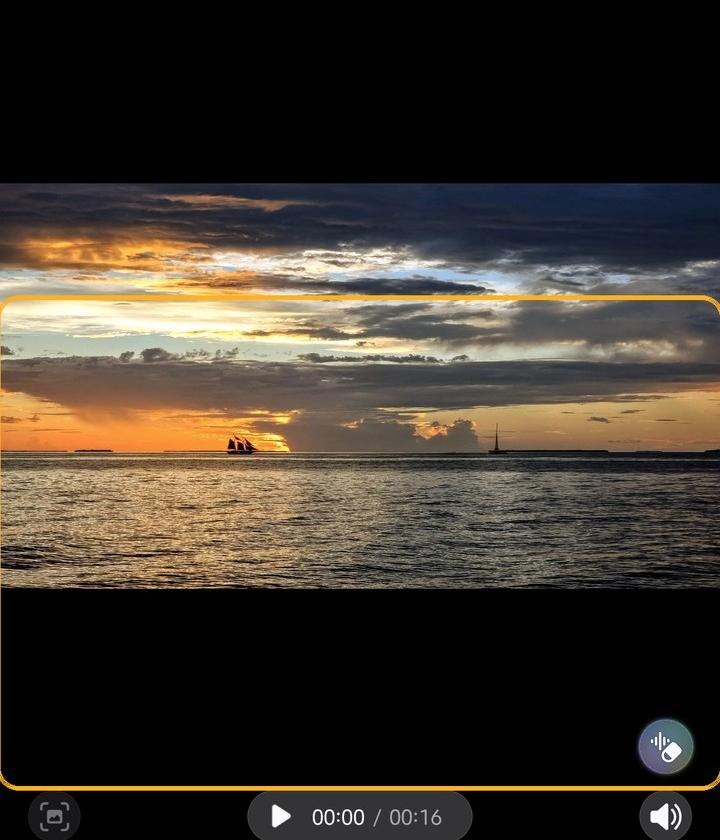
Touch and hold most videos while they play to watch them in slow motion, with AI-generated in-between frames, then save the slow part as a clip.
- Where:
- Play a video in Gallery › touch and hold › tap the Save slow-mo clip icon at the top left when you let go. It saves a separate clip.
- Phones:
- S23 and newer, Z Fold5/Flip5 and newer, and the A56.
My FanCam
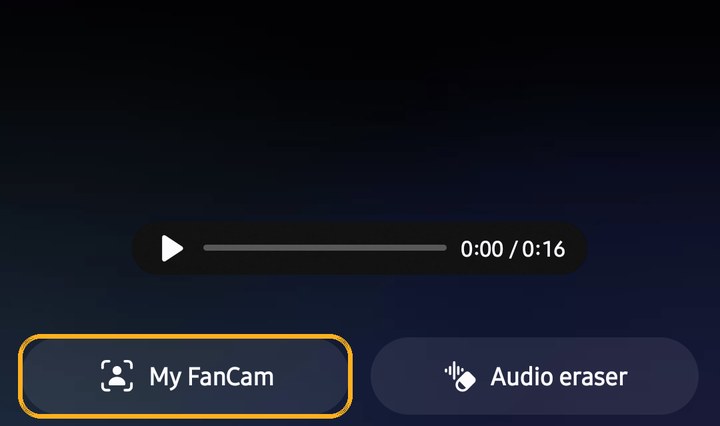
New in One UI 9: pick one person in a video and the Gallery reframes the clip to keep them in the middle, in portrait or landscape.
- Where:
- Open a video in Gallery › Edit › the sparkle Galaxy AI button › My FanCam.
- Phones:
- S24 and newer, and Z Fold6/Flip6 and newer, on One UI 9.
Auto Trim
Picks the key moments from your clips and cuts out the pauses, for a short highlight reel.
- Where:
- Gallery › Menu › Studio › Start new project › choose clips › Auto trim.
- Phones:
- Recent Galaxy AI phones, plus the A56 and A57.
AI inside the camera
The processing you don't see: scene detection, zoom enhancement and night processing, and how to turn them down.
ProVisual Engine and the AI ISP
Samsung's name for the AI processing behind every photo: noise reduction, detail, colour and HDR, including at night and at long zoom. The S26 series adds an AI image signal processor, and on the S26 Ultra it also covers the selfie camera.
- Where:
- Always on in the Camera app. Expert RAW skips most of it.
- Phones:
- S24 series and later (AI ISP: S26 series).
Scene optimiser and AI Zoom
Scene detection tunes colour and contrast to the subject. AI Zoom cleans up long zoom shots, up to 100x on the Ultra models.
- Where:
- Camera › Settings › Scene optimiser (One UI 9: Photo enhancer › Scene detection).
- Phones:
- Most Galaxy phones; 100x zoom on the Ultra models.
Where to switch Galaxy AI tools on and off
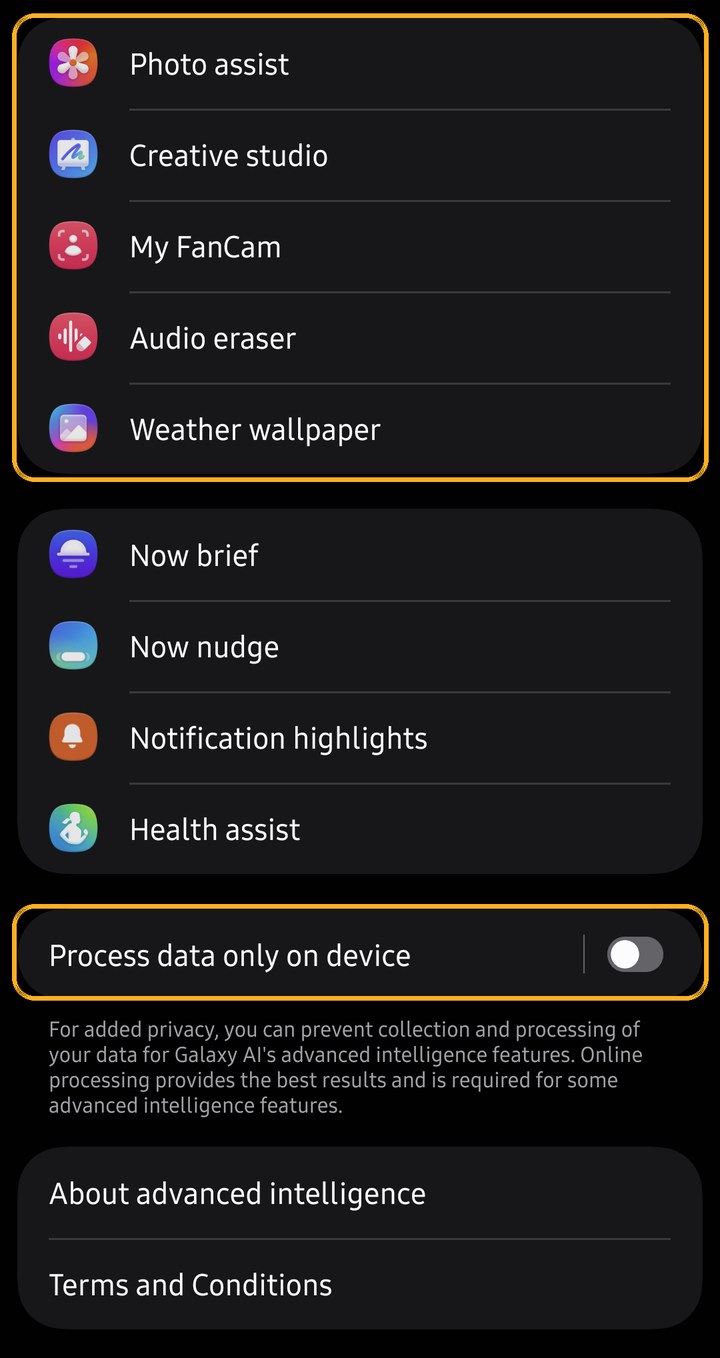
Open Settings › Galaxy AI. On One UI 9 the photo, video and wallpaper tools sit together: Photo assist, Creative studio, My FanCam, Audio eraser and Weather wallpaper. Photo assist has its own On switch and separate pages for AI eraser and Move, Create and Style; the AI eraser and Move page has its own Process data only on device switch, so erasing can stay on the phone. Audio eraser's page only explains where it works.
At the bottom, Process data only on device stops Galaxy AI's advanced features processing your data online. Samsung says some features need online processing, so expect most of Photo Assist to stop working. Leave it off if you use them.
Getting good results from Galaxy AI
- Start with a good photo. AI can remove a stranger or a lamppost, but it can't fix missed focus, harsh light or a bad angle.
- Erase small things against simple backgrounds. Sky, grass, sand and plain walls fill in cleanly; busy patterns and people's edges are where the fakes show.
- Look for reflections and shadows. AI eraser removes the person you select, not their reflection in a puddle or window, so select that as a second step.
- Check the result at full size before you share it. Show previous flips back to the original, Undo takes a step back, and Photo Assist always saves a copy, so the original is never overwritten.
- Photo Assist resizes results to 12MP if the original is bigger and adds an AI label in the corner. For prints or heavy crops, keep the original and do precise work in Snapseed or Lightroom.
- Clean up sound at the source: get closer, shield the mic from wind, then use Audio Eraser for what's left.
Frequently asked questions
What is Galaxy AI?+
Galaxy AI is Samsung's name for the AI features on its phones, launched with the Galaxy S24 in January 2024. For photos and video, that means the AI tools in the Gallery, such as Photo Assist, Audio Eraser and Best Face, plus the AI processing inside the Camera app.
Is Galaxy AI free?+
The basic features are, for now. Samsung said on 11 November 2026 that core Galaxy AI features stay free, and that some advanced features or new services may be paid. A leaked "Galaxy AI Premium" test at $4.99 a month suggests free tools such as Photo Assist could get usage limits, probably starting with the S27. Samsung hasn't announced a paid plan.
Which phones have Galaxy AI?+
The S series from the S22 and the Z Fold and Flip from the Fold4 and Flip4, with the full set of photo tools on the S24 and newer and the Fold6 and Flip6 and newer. Mid-range Galaxy A phones such as the A37 and A57 get a smaller, mostly on-device set that Samsung calls Awesome Intelligence: Object Eraser and Edit suggestions, plus Best Face and Auto Trim on the A56 and A57, but no Photo Assist or Audio Eraser. Our guides by phone cover each model.
Does Galaxy AI need the internet or a Samsung account?+
You need to be signed in to a Samsung account. Generative tools such as Photo Assist and Creative Studio also need an internet connection, while Edit suggestions and the classic Object Eraser run on the phone. Settings › Galaxy AI › Process data only on device turns off the features that need the cloud. AI eraser and Move also have their own on-device switch, under Photo assist › AI eraser and Move, which kept erasing working offline in our test.
Do AI-edited photos get a watermark?+
Yes. When we tested Photo Assist on a Galaxy S25 Ultra running One UI 9 in November 2026, even a plain AI eraser edit saved with a small "AI-generated content" label in the bottom-left corner, and the file carried Content Credentials (C2PA) metadata. The classic Object Eraser adds no watermark. Photo Assist results are always saved as a copy, and photos above 12MP may be resized to 12MP.
Can I turn Galaxy AI off?+
There's no single off switch. Open Settings › Galaxy AI. Photo assist has its own On switch. Process data only on device turns off the features that need Samsung's servers. On our S25 Ultra with One UI 9, the Audio eraser page had no switch. For photos with less processing, turn off Scene optimiser (Scene detection on One UI 9) in the Camera settings or shoot in Expert RAW.
AI edits work best on good photos
Samsung Photography Academy is a guided course of 60+ short 5-minute lessons on light, composition and the Galaxy camera app, recorded on the phone's own screen.
See the course